Getting Started
Set Up, Mobile, and the Lay of the Land
Astro Bestie reads the real sky against your own birth chart. Everything you see is calculated for your exact birth date, time, and place, so nothing here is a generic sun-sign horoscope.
Setting up your chart
The first time you sign in, Astro Bestie asks for your birth details. These are what every reading in the app is built from.

- Enter your name, or leave it blank if you'd rather not be greeted by name.
- Enter your birth date and birth time.
- Start typing your birth city and pick it from the list. Astro Bestie works out the latitude, longitude, and the correct historical time zone, including daylight saving.
- Hit Save chart.
Don't know your birth time? Enter your best estimate and carry on. Your houses and rising sign depend on the time, so those will be approximate until you find it, but everything else still works. You can change your details any time from Birth chart → Edit birth details.
The quick tour
After your chart is saved you get a one-screen tour of what lives where. You can bring it back any time from the ? button at the top of any page.

Accessing Astro Bestie on mobile
Astro Bestie runs in your phone's browser, and you can add it to your home screen so it opens full screen with its own icon, just like an app. Nothing to download.
iPhone and iPad
- Open app.getastrobestie.com in Safari. This only works in Safari, not Chrome.
- Tap the Share button at the bottom of the screen — the square with an arrow pointing up.
- Scroll down the list and tap Add to Home Screen.
- Name it if you like, then tap Add.
Android
- Open app.getastrobestie.com in Chrome.
- Tap the three dots at the top right.
- Tap Add to Home screen (some phones say Install app).
- Tap Add or Install to confirm.
Signing in once on your phone keeps you signed in, so the icon takes you straight to Today. Everything syncs with whatever you do on a computer.
Finding your way around
Everything in Astro Bestie sits under six tabs:
- Today — your daily snapshot: what's exact today, your tasks, and space to write.
- Transits — the deeper dive: the sky wrapped around your chart right now, a calendar, and search for any transit's past and future passes or the chart on any date.
- Journal — everything you've written, newest first.
- Co-Create — projects and goals timed to the astrology that supports them.
- Birth chart — your whole chart, placement by placement, with Zodiacal Releasing on its own tab beside it.
- Ask Astro Bestie — chat with your chart, your transits, and your journal all in context.
Two add-ons add more inside those tabs: Path to Purpose under Birth chart, and the Ritual Cookbook under Co-Create.
Tap the ? on any page for a reminder of what that page does. It's page-specific, not one generic help screen.
Settings, dark mode, and text size
These live in your account rather than on any of the six tabs, which is why they are easy to miss. Tap the circle with your initial at the top right of any page. Your account opens with three tabs across it:
- Account — your profile, your birth details, and exporting your data.
- Appearance — light or dark mode, larger text, reduce motion, and a switch for the underlined glossary words if you'd rather read without them.
- Billing — your plan and any upgrades.
Today
Your Daily Home
The Today tab has everything you need to ground yourself in the astrology of right now. You'll get a personalized horoscope, plus the tools you need to work with it: a journal text box, a to-do list, and a place to ask Astro Bestie follow-up questions.

Today's Sky
Your daily horoscope is written fresh for your own active transits, once per day. It's the lived meaning of the day rather than the technical astrology, because the transits themselves are listed right underneath.
It's written once a day and then it stays put. Coming back later shows you the same horoscope rather than a new one, so you can return to it through the day. Go deeper with Astro Bestie opens a conversation about it.
Transits active today lists what's actually happening, split into what's activating your chart and what's happening in the wider sky.

Reading the chips. Personal means the transit is between the current cosmic weather and your birth chart. Mundane means the transit reflects the movement of planets through the sky that affect the world at large. Lunar event is a new moon, full moon, quarter moon, or eclipse. Turn off what you don't want to think about today.
Work with today
- Write about today — a journal entry already attached to the day's transits. Any template you've set to repeat on that day is waiting at the top, under Templates for today.
- Plan today — project tasks due today plus your own to-dos, which can repeat daily, weekly, every two weeks, or monthly.
- Ask about today — opens Astro Bestie already anchored to the day.
Affirmations you've chosen days for in your Weekly review & preview greet you at the top of Today, right under the date. The × hides one for that day.
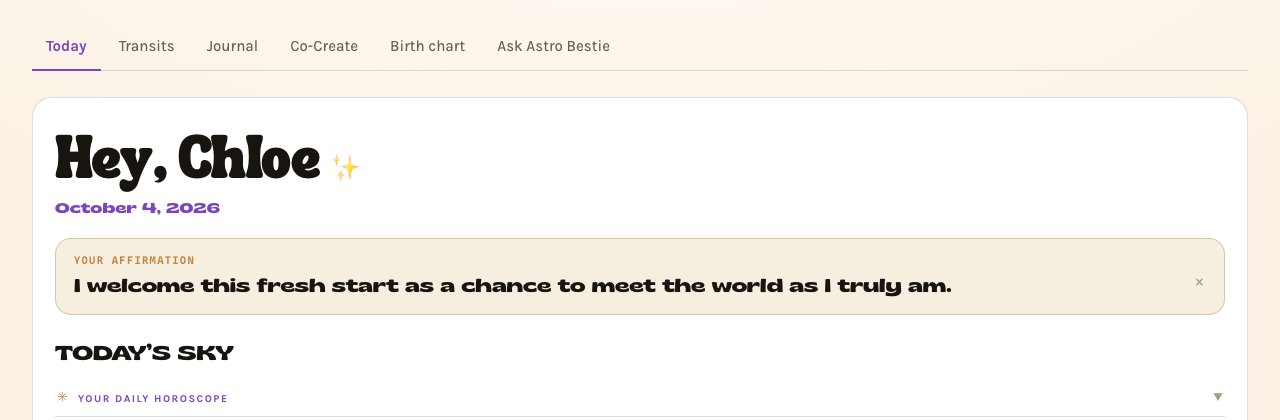
Any intention you set for a transit in advance appears here on the day that transit arrives. That's the point of setting them early.
Transits
Now, the Calendar, Search, and Reading a Transit
A transit is a planet moving through the sky and the angle it makes to a point in your birth chart, activating that part of it. This tab is where you track them.

The three views
- Now — the sky right now wrapped around your birth chart, where every planet sits, and every transit that's active.
- Calendar — your transits, journal, and tasks on one timeline.
- Search — four tools: the Aspect Search Engine, the Chart Explorer, By Planet, and Retrogrades.
Looking for Zodiacal Releasing or Current Sky? Zodiacal Releasing has moved to the Birth chart tab, since your chart is what it reads. Current Sky is gone: tap any planet on the wheel on Now, or in the positions list beside it, to open its page.
The sky on your chart
Now opens with a biwheel: your birth chart on the inside, and the planets as they are right now around the outside. Every planet shows its degree and minute, and a planet that's retrograde is drawn in red. Each transit touching your chart gets a line across the wheel.
Beside the wheel, Positions lists where every planet sits right now, by degree, sign and house. Switch it to Your chart to see your natal positions instead. Open a transit in Currently active below the wheel and its line lights up.
Tap a planet to open its page
Every planet on a wheel, and every planet in a positions list, opens its own page:
- A planet in the sky opens its planet page, as it's moving right now, with everything you've written about it.
- A planet in your chart opens its placement in your birth chart. That's the one home for your reflections on a natal placement, so whatever you write there is kept in one place. ← Back to Transits takes you straight back.
The Chart Explorer
Open Search → Chart Explorer to see the wheel on any date. Pick a date and time, step forward or back by a day, a week or a month, tap Now to come back to today, or press Play to watch the planets move through your houses.
- Wheel switches between With my chart and Sky only. Sky only sets your chart aside and shows the aspects the planets make to each other.
- Transits on this date lists what's in orb on that day: Natal for transits to your chart, Mundane for the planets aspecting each other, or Both. Tap Open on any of them to go to its page.
- On the wheel, a solid line is a transit to your chart and a dashed line is an aspect between two planets in the sky.
Find an aspect on the wheel
Right under the wheel, search for any aspect, like the Sun square your Moon. Each result lists the dates it perfects. Tap a date and the wheel jumps to that moment, with the aspect drawn in.
When you find the one you're looking for, tap Open to reflect →, on the result or on the Showing bar above the wheel, to go to that transit's page to read it and write about it.
The Aspect Search Engine
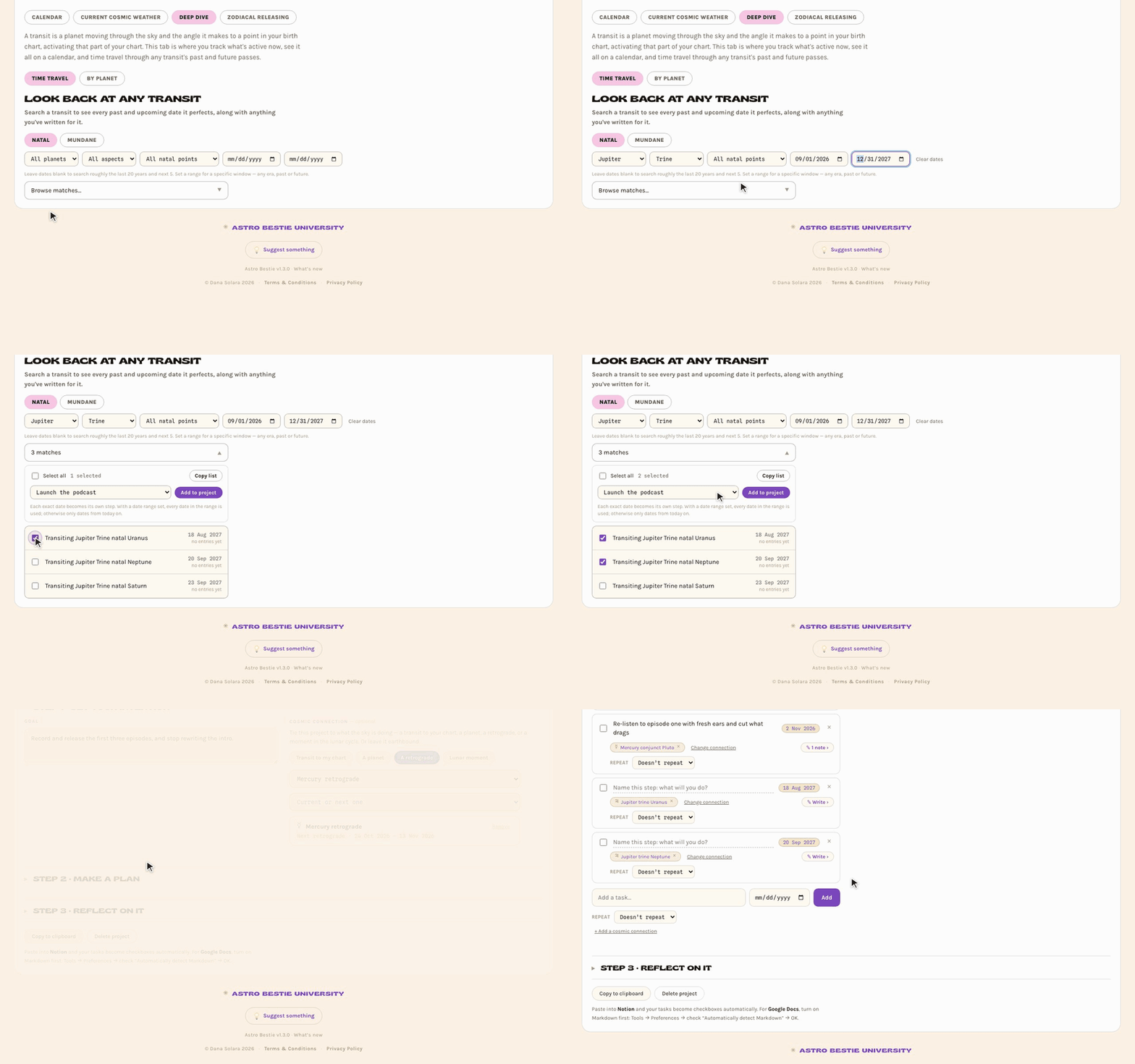
The Aspect Search Engine (it used to be called Time Travel) finds any transit and every date it perfects, past and future, with everything you've written for it. Tap Wheel on any result to see that moment in the Chart Explorer.
Take a search into Co-Create. In Search → Aspect Search Engine, every result has a checkbox. Tick the transits you want, then Copy list to paste them anywhere, or Add to project to turn each exact date into a step in any project. Only the ones you tick go over. With a date range set, every date in the range is used; without one, only dates from today on.
Exact today, coming up, winding down
Active transits are grouped by where they are in their arc, which tells you how to treat them:
- Exact today — at its peak. This is the one to lead with.
- Coming up — still building. You can feel it, but it hasn't landed.
- Winding down — past its peak and loosening.
Personal, in the sky, or both
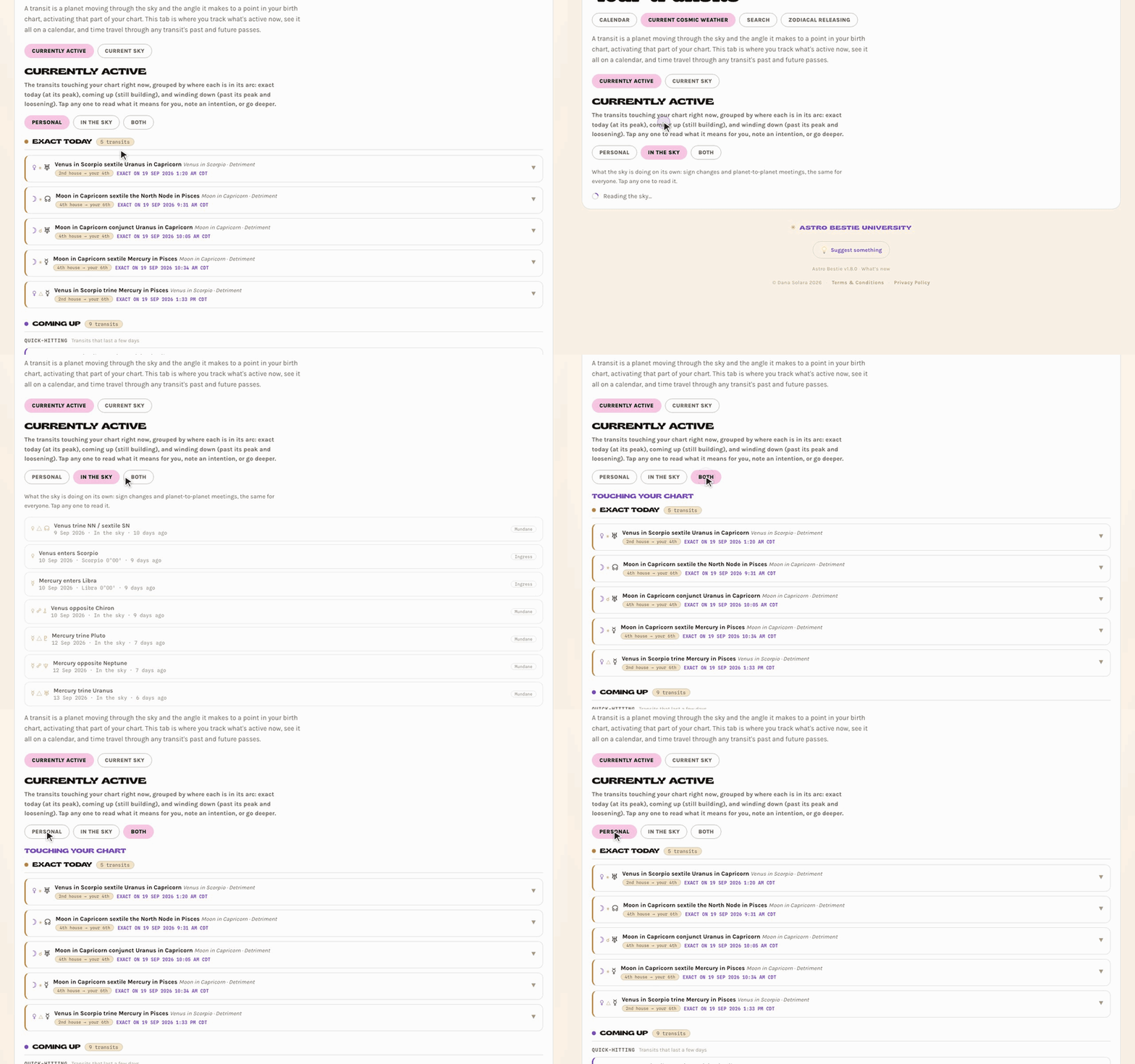
On Now, Currently active has a toggle under its heading. Personal shows the transits touching your chart. In the sky shows what the planets are doing on their own, the same for everyone: planets changing signs and meeting each other. Both shows the two together, your own transits first. The app remembers your choice.
The calendar

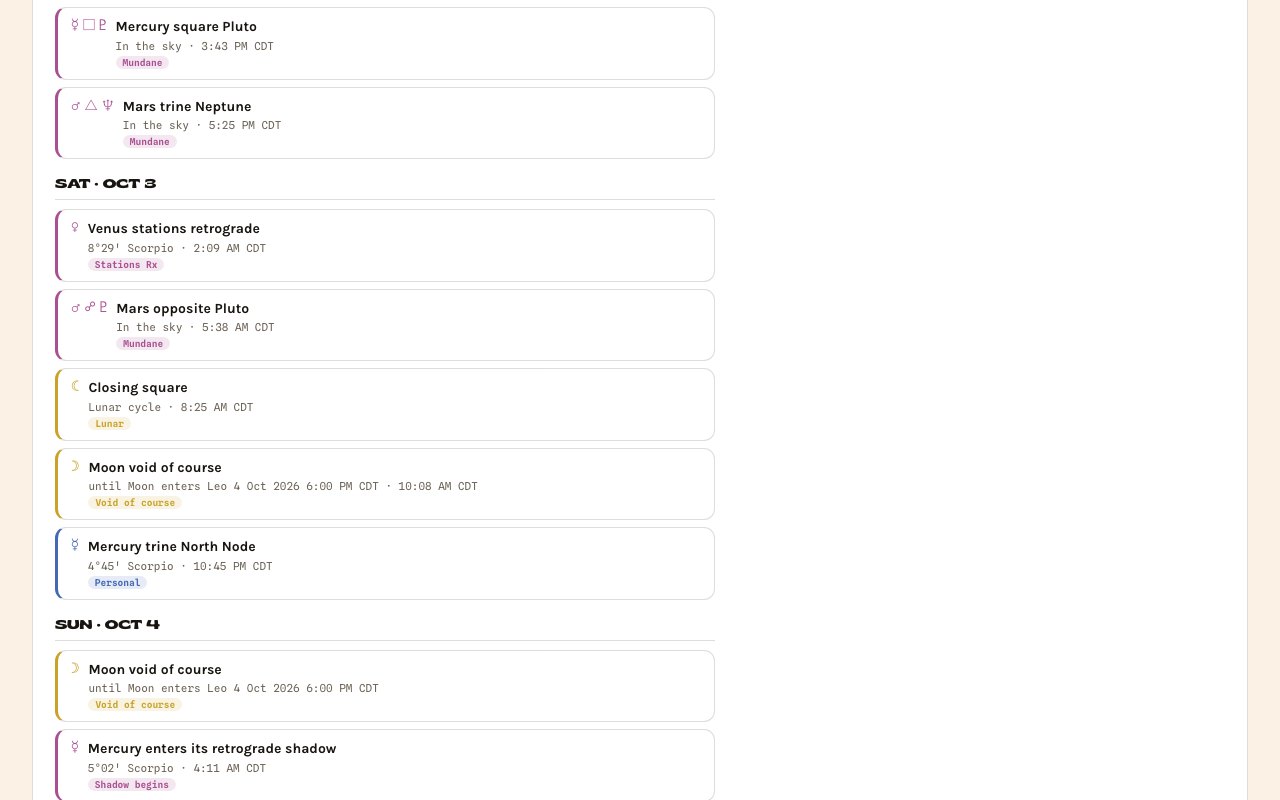
Every layer toggles independently through Filters: personal transits, ingresses, mundane aspects, retrogrades, the lunar cycle, moon sign, void of course, your journal entries, and your tasks. Week, month, and agenda views are all available.
Void of course means the Moon has finished making aspects in its current sign and hasn't entered the next one. Traditionally a poor window for starting things that need to stick.
Retrogrades show as the whole cycle, not just the stations: the day a planet enters its pre-retrograde shadow, the day it stations retrograde, the day it stations direct, and the day it leaves its post-retrograde shadow. Tap any of them to open that retrograde's page.
Retrograde pages
Every planet that turns retrograde has its own page. Open one from a retrograde on the calendar, or from Search → Retrogrades, which lists every planet with the retrograde it's in now or heading into next, and the degrees it backs over.
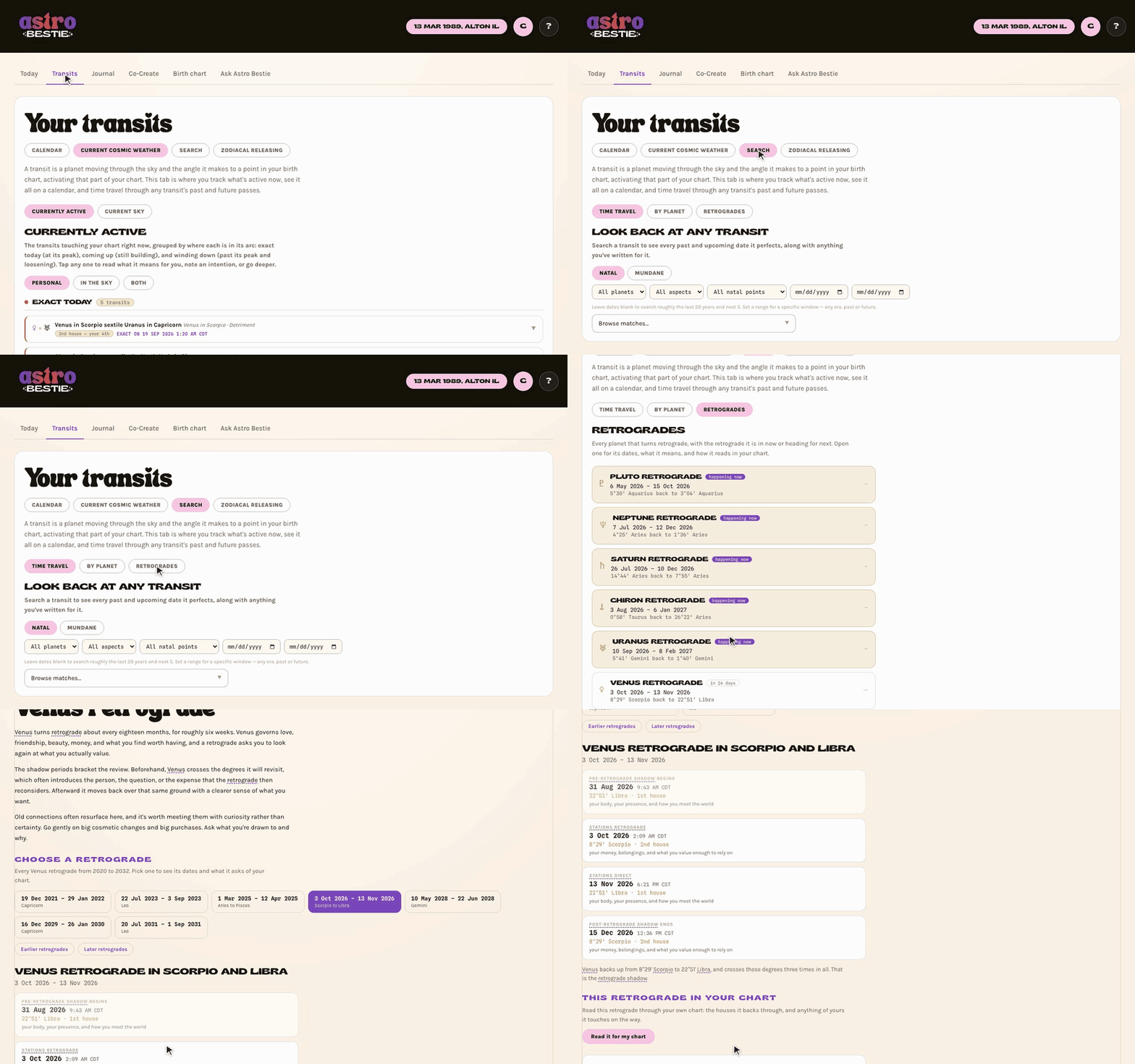
The page starts with what that planet's retrograde cycle is about, then lists every one of its retrogrades from 2020 to 2032. Tap Earlier retrogrades or Later retrogrades to go further. Pick one and you get the four dates that matter:
- Pre-retrograde shadow begins: the planet first crosses the degrees it will later back over.
- Stations retrograde: it turns and starts moving backward.
- Stations direct: it turns forward again.
- Post-retrograde shadow ends: it clears the last of those degrees.
Each date shows the degree and the house of your chart it falls in. Read it for my chart writes a reading of that cycle through your own chart.
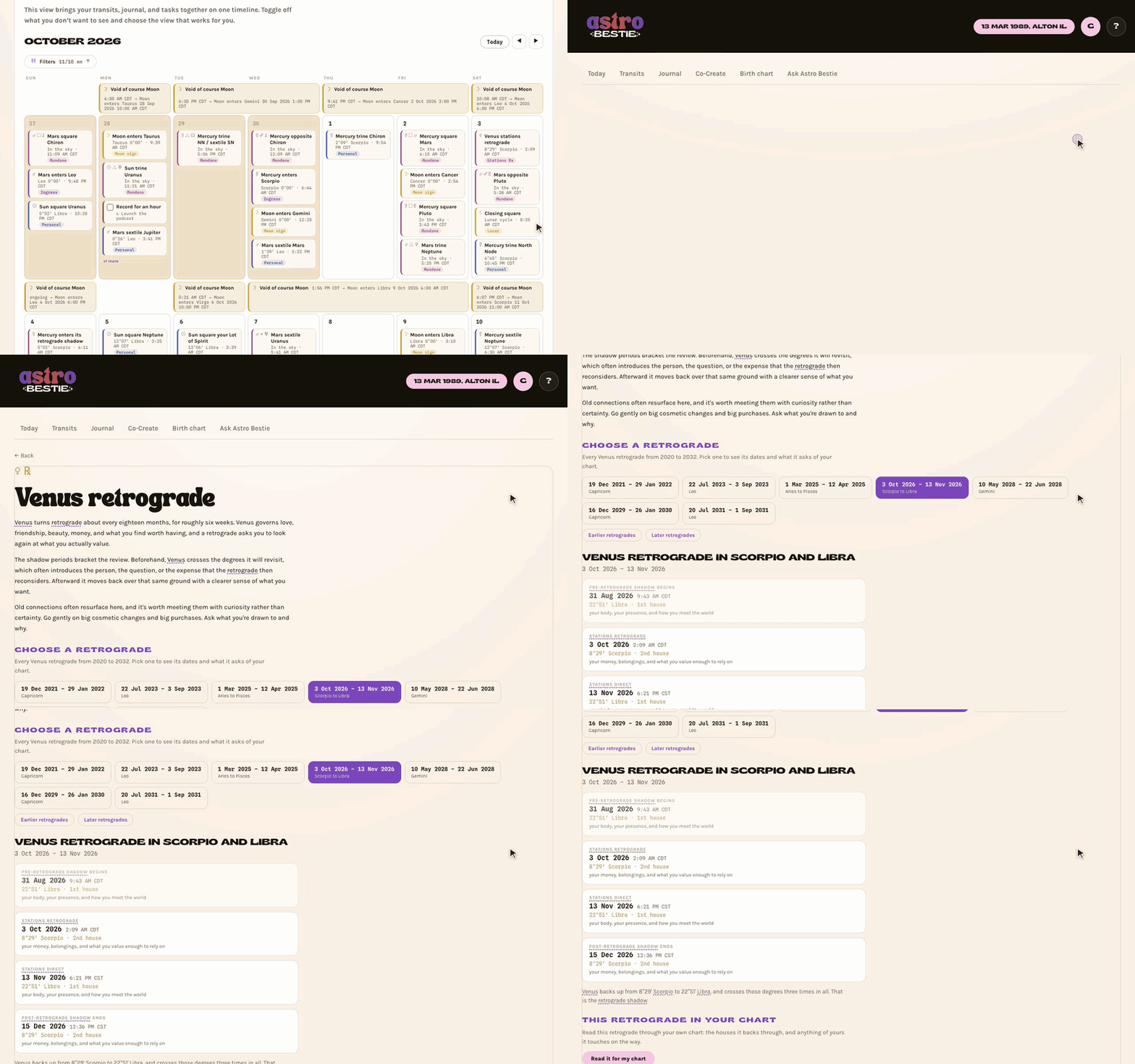
Which dates matter most for you?
Every retrograde page ends with the question Which dates matter most for you? Tap Ask about my dates and it goes to Astro Bestie. She picks out the dates that carry weight in your chart this year, reading them through your profection year and the planet that rules it, and says why each one counts for you.
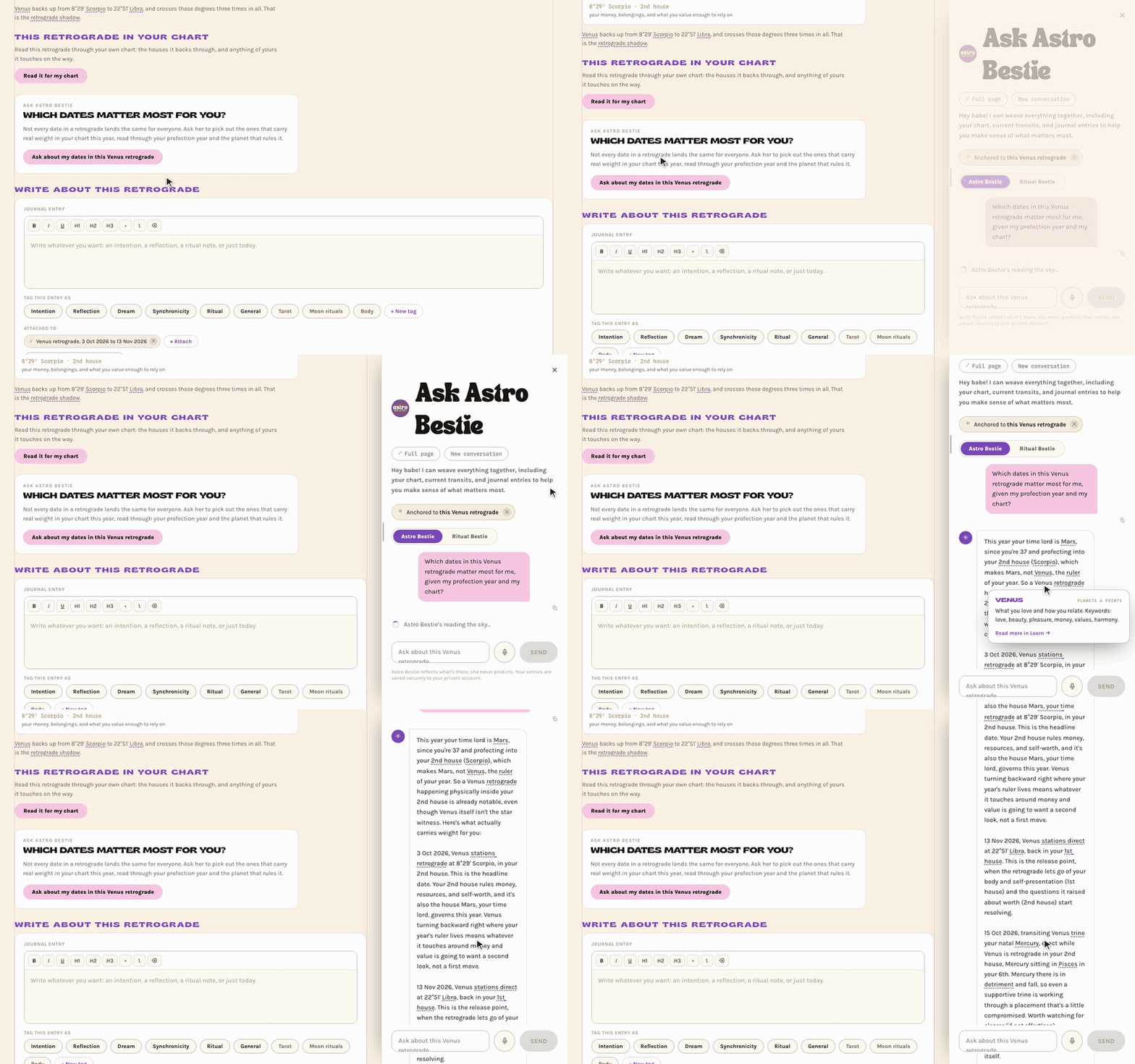
Stationing, pre-retrograde shadow and post-retrograde shadow are underlined wherever they appear. Hover or tap one for a plain-language definition.
Personal Planet Retrogrades 2026-27
Mercury, Venus and Mars are the personal planets, and their retrogrades are the ones you feel in everyday life. This page reads them as one story through your chart. Open it from the top of Search → Retrogrades, from See Personal Planet Retrogrades on any Mercury, Venus or Mars retrograde page, or from Journal → Templates.
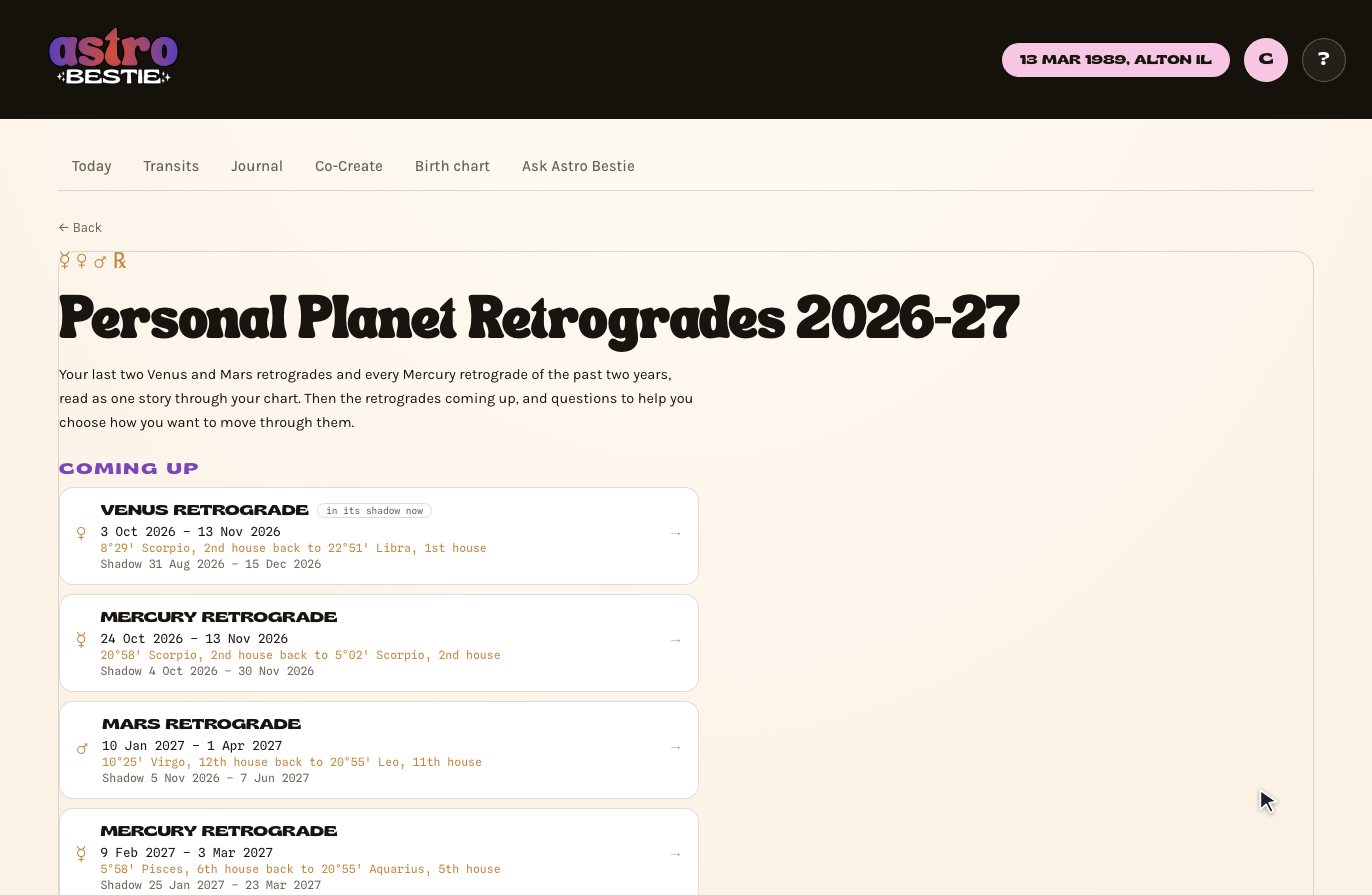
Coming up lists every Mercury, Venus and Mars retrograde that is under way now or starts in the next six months. Where you've been lists your last two Venus retrogrades, your last two Mars retrogrades, and every Mercury retrograde of the past two years, grouped by year. Tap any of them to open its own retrograde page.
Tap Tell my story and Astro Bestie reads all of it through your chart: what each past retrograde asked of you and where it showed up, the thread running through them, and the story of the season ahead in date order. She notices where retrogrades overlap in time, where a coming one goes back over degrees a past one covered, and whether one of them belongs to your time-lord planet this year. If you wrote in your journal during a past retrograde, she reads that too. It takes about a minute and a half.
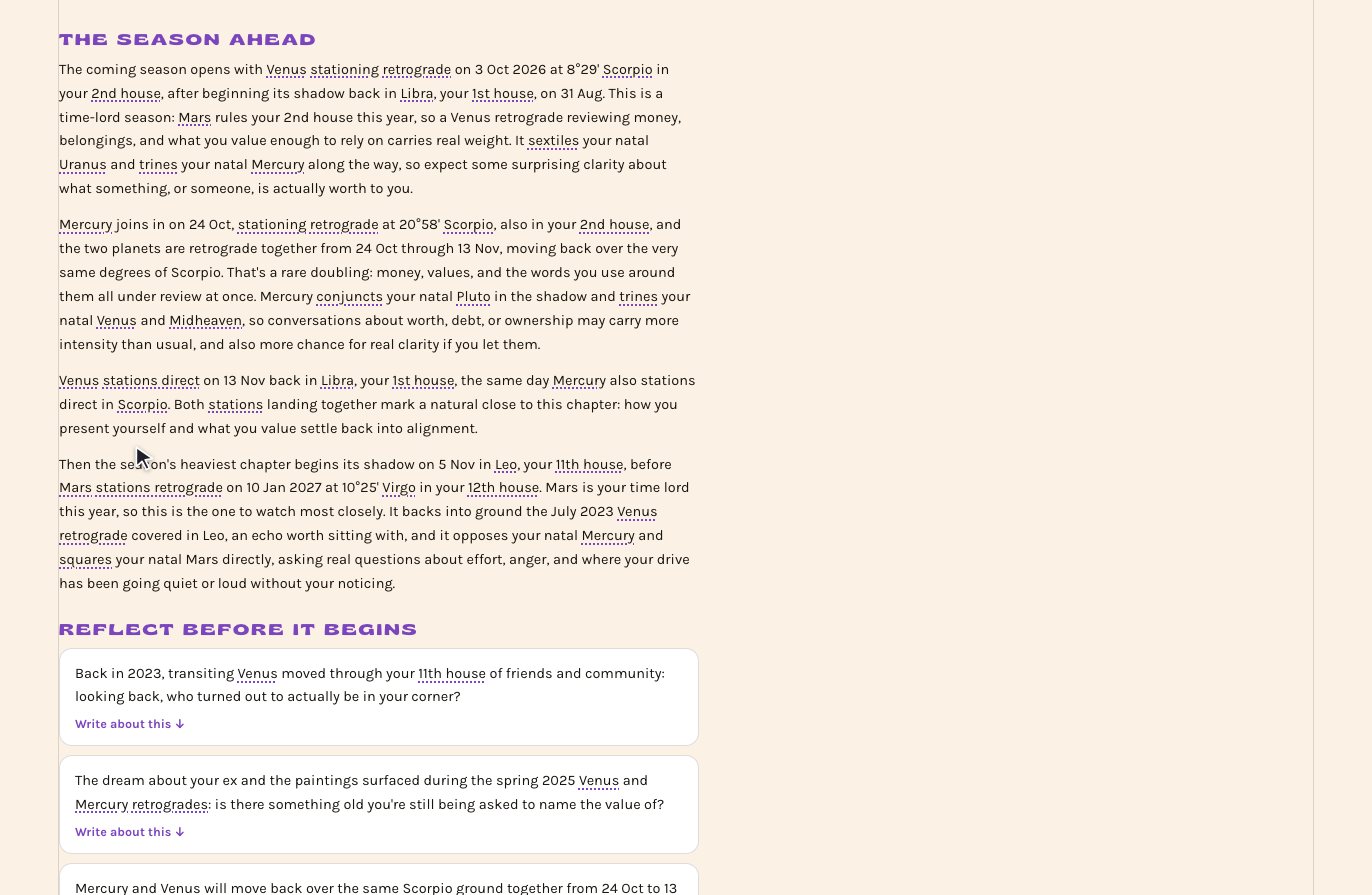
Reflect, then set your intention
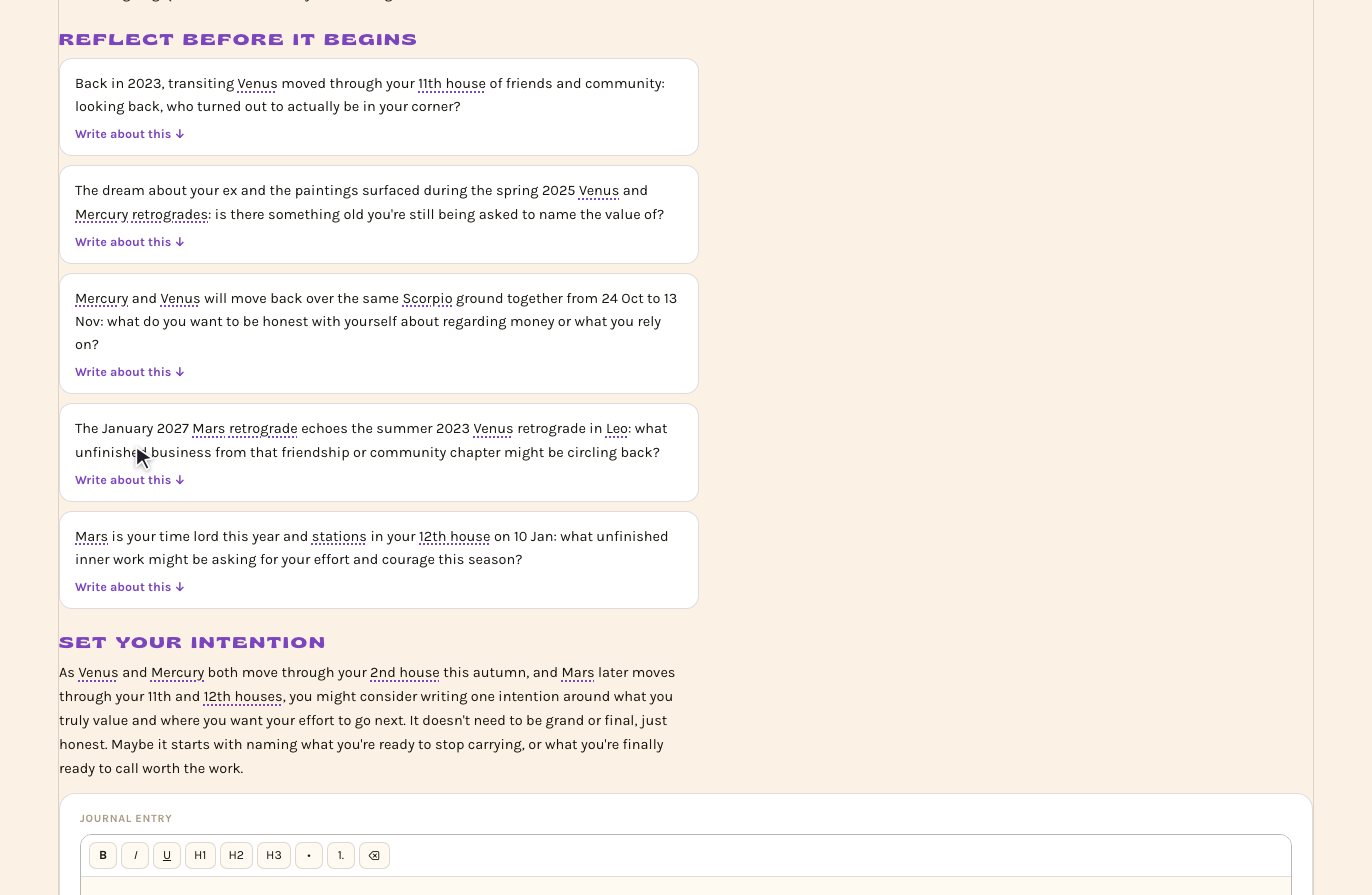
The story ends with five reflection questions, each tied to a past retrograde or a part of the coming season. Tap Write about this and the question drops into the journal box below as a heading, ready for your answer. Save intention files what you write on the page of every coming retrograde, so it is waiting for you when each one begins.
Reading a transit
Tap any transit to open it. This is the most information-dense screen in the app, so here's how to read it.

- The title names what's moving and what it's activating: Venus in Libra square the Lot of Fortune in Cancer.
- The dignity follows the sign — domicile, exaltation, detriment, fall, or peregrine. It tells you how much power the planet has to deliver.
- The houses read as 1st house → your 10th: where the transiting planet is, and which part of your life it's activating.
- Exact on is the precise moment it perfects, in your local time.
- In orb is the window either side where you can still feel it.
Going further
- Go deeper writes a longer reading for that transit.
- Ask about this opens the chat already anchored to it.
- Write about this saves a journal entry attached to it.
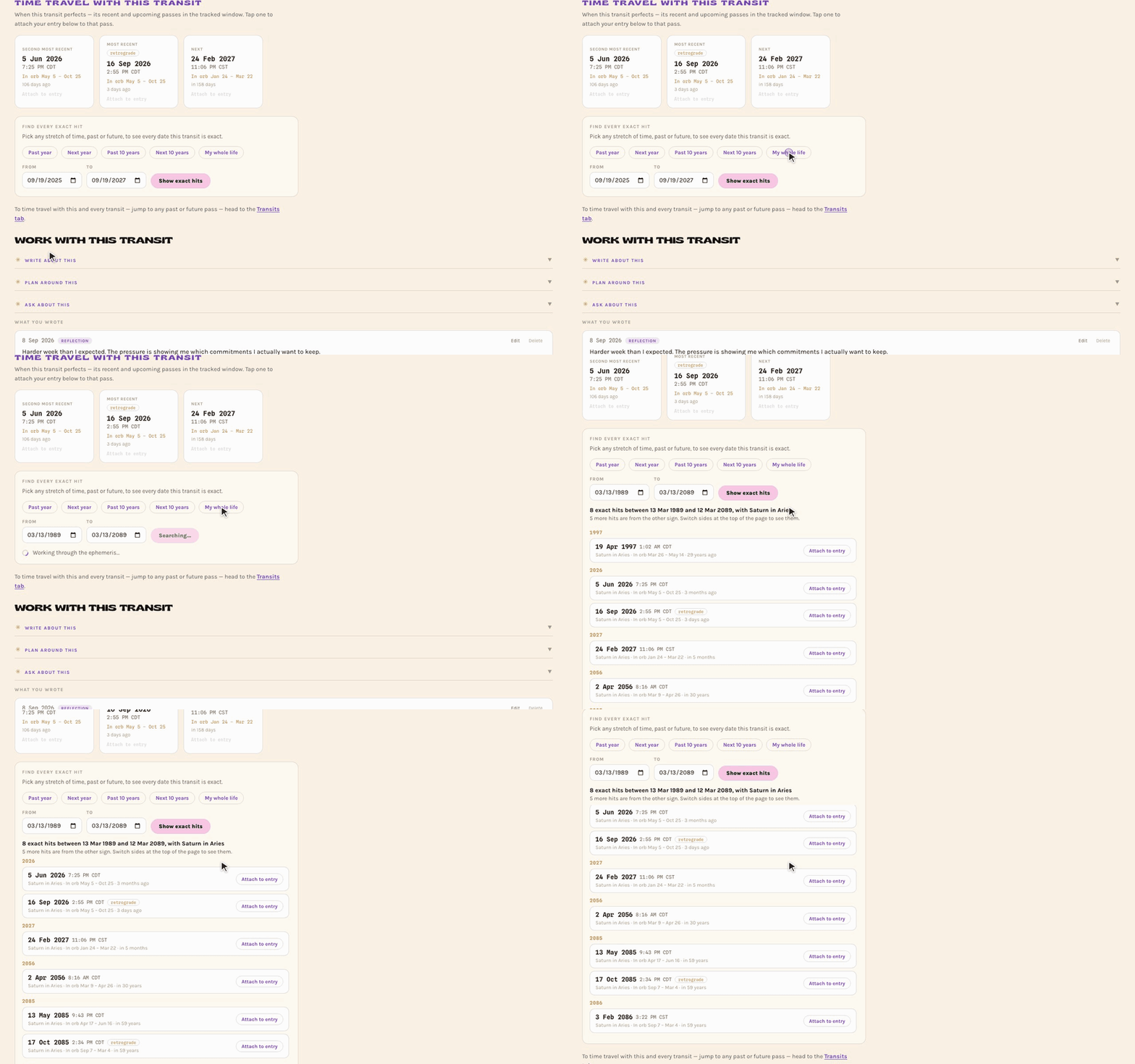
- Time travel shows that transit's most recent and next passes, so you can reflect on the ones that happened and set intentions for the ones ahead.
Every exact hit, for any stretch of time
Under Time travel, Find every exact hit lists every time a transit perfects between two dates. Set your own, or tap Past year, Next year, Past 10 years, Next 10 years, or My whole life. The hits are grouped by year, each with its time, whether the planet was retrograde, and when it was in orb. Attach to entry files your writing against that one pass.
Underlined words anywhere in the app have a definition. Hover or tap to read it without leaving the page.

Journal
Writing That Files Itself
The journal isn't a separate diary. Anything you write can attach to the parts of your chart it's about, and it then shows up on those pages too.

Tagging an entry
Every entry can be tagged as one or more of: intention, reflection, dream, synchronicity, ritual, general, or tarot. Use the filters to see just the kinds you want.
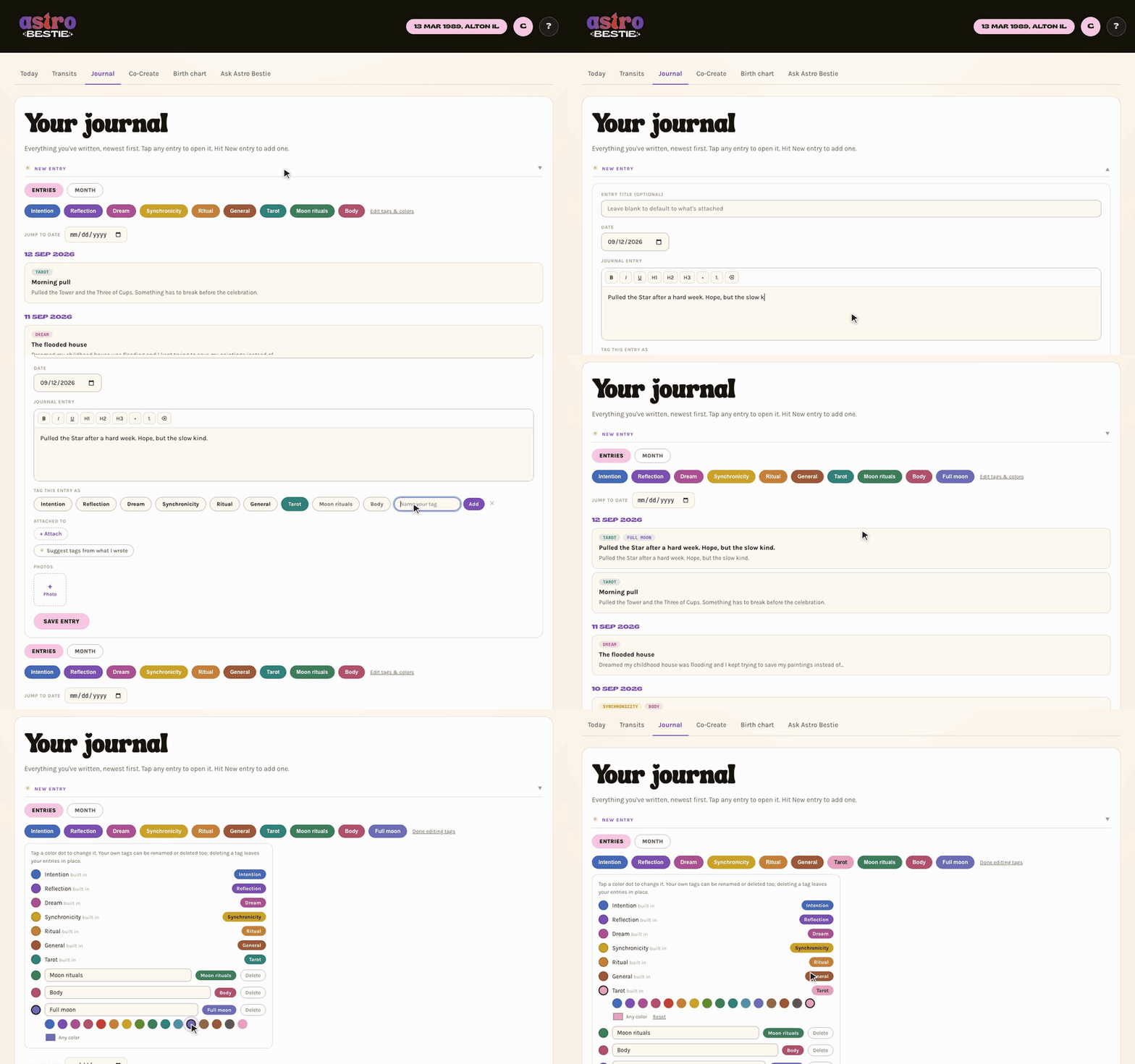
- Make your own tags. Tap + New tag in the tag row, name it, and it's there for every entry from then on. An entry can carry only your own tags, or mix them with the built-in ones.
- Choose their colors. On the Journal page, tap Edit tags & colors. Tap any tag's color dot to pick a new color, the built-in tags included, and rename or delete the tags you made. Deleting a tag leaves your entries in place.
Filter by what an entry is attached to
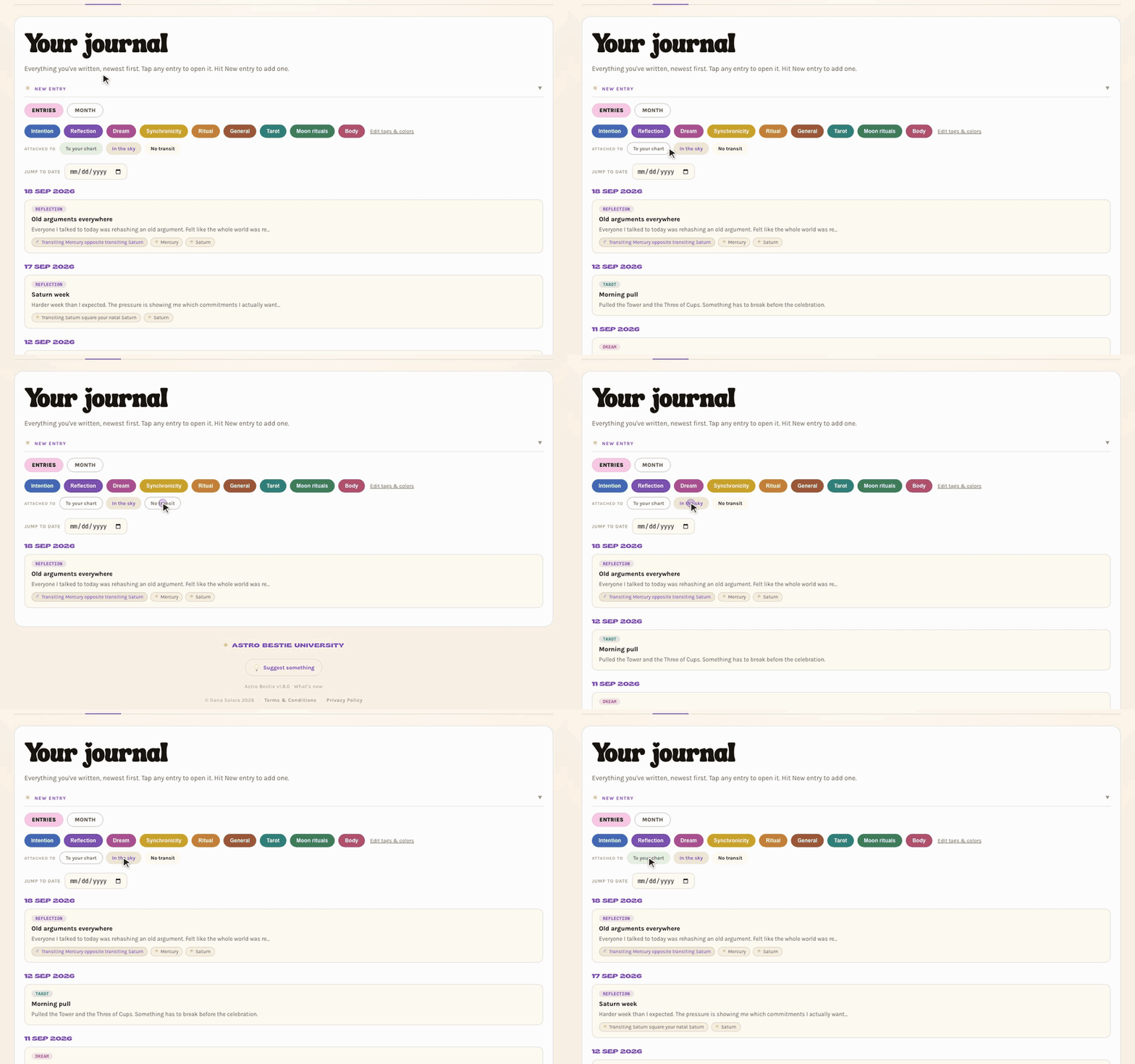
Under the tag filters is a second row, Attached to: To your chart, In the sky, and No transit. All three start on. Turn one off to hide those entries, so you can reread just what you wrote about the sky, or just the entries tied to your own transits.
Writing an entry

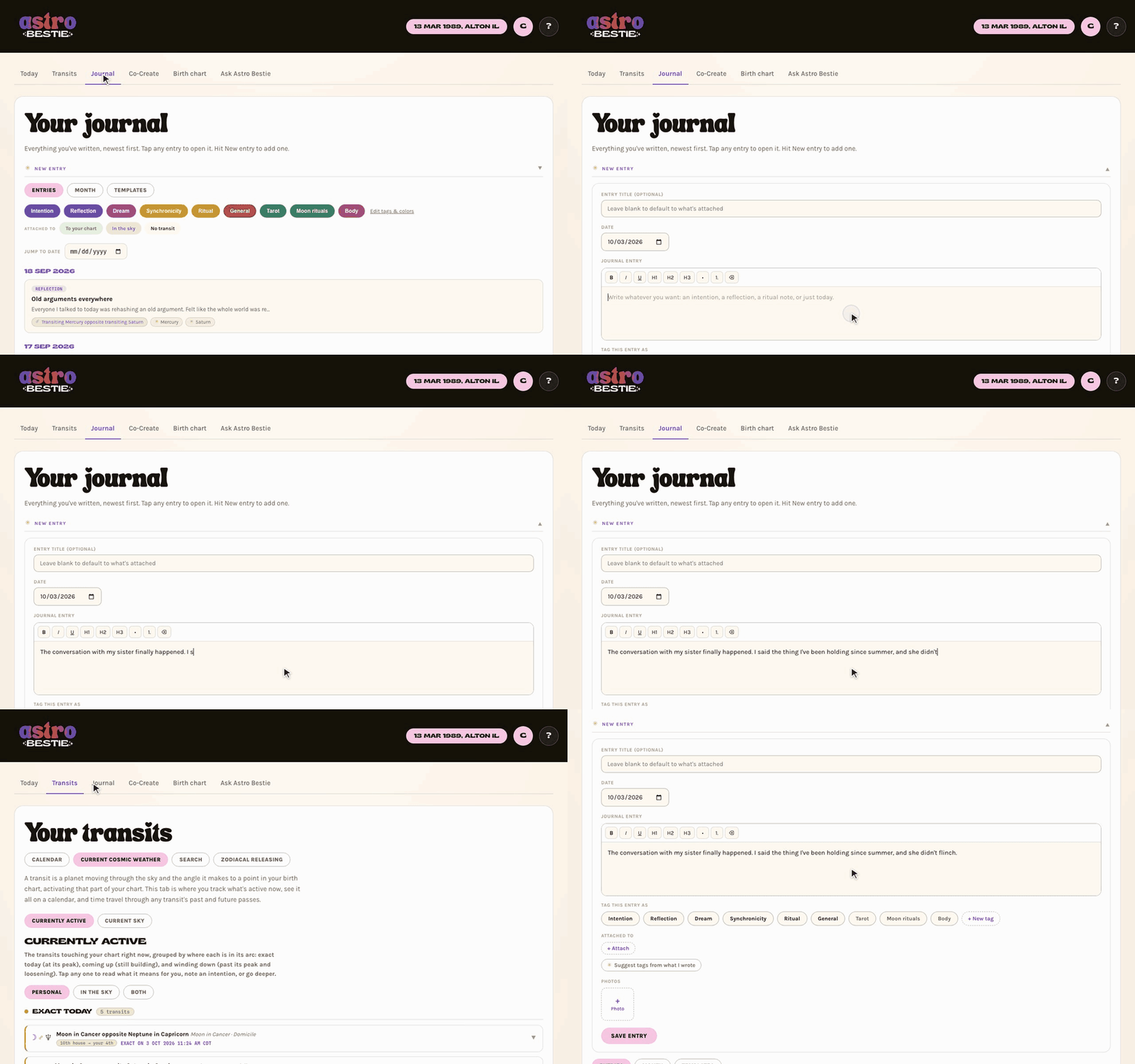
- Hit New entry.
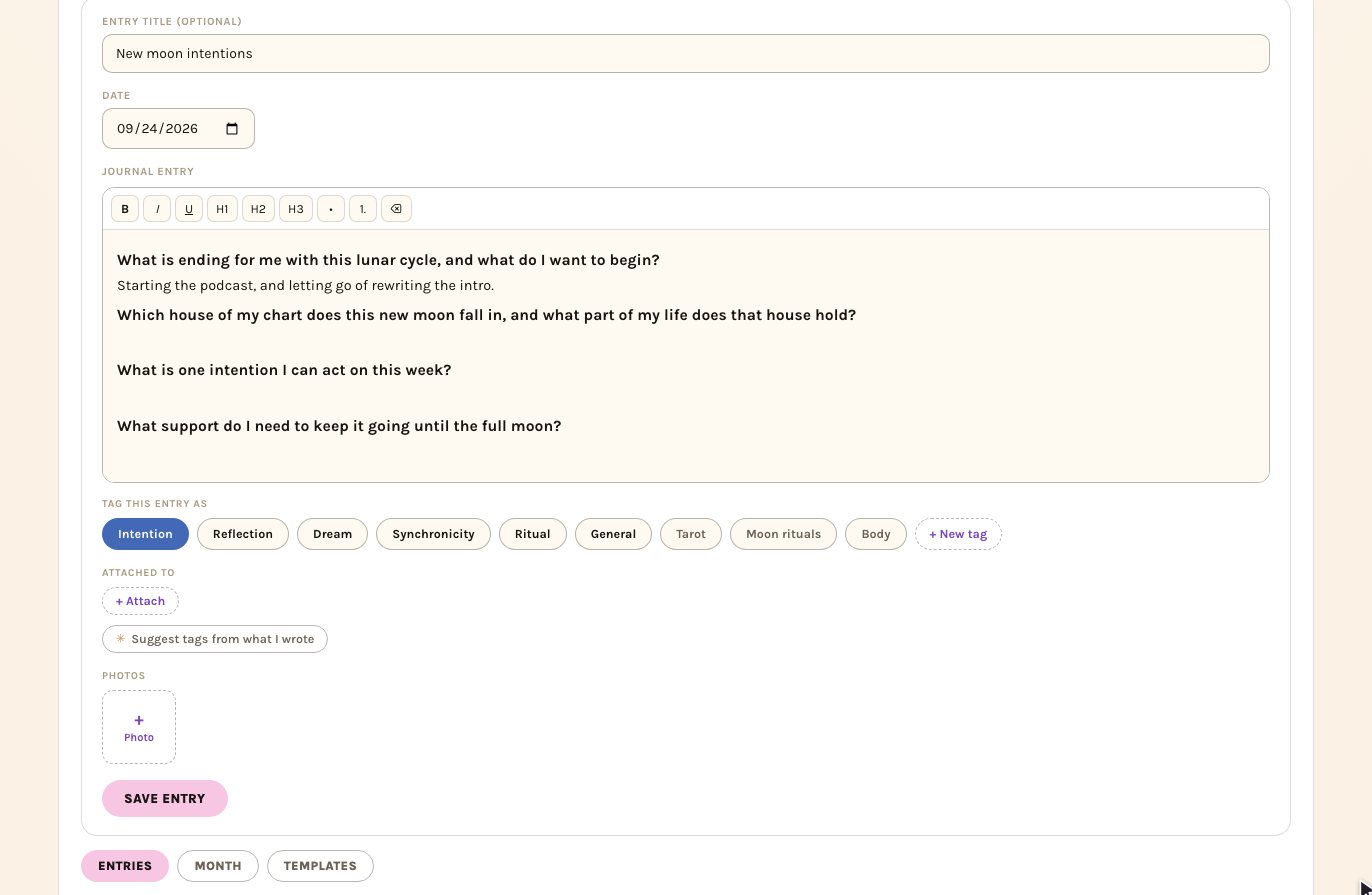
- Give it a title, or leave it blank and it takes the name of whatever you attach. Set the Date if you're writing about a day that has already passed. The entry is filed under that date in your journal.
- Write. You have bold, italic, underline, three heading levels, and bulleted or numbered lists.
- Tag it under Tag this entry as. More than one is fine.
- Use + Attach to connect it to a transit, a placement, a house, a natal aspect, or a project. Or tap Suggest tags from what I wrote and let Astro Bestie find them.
- Add photos if you want them.
- Save entry.
Your writing is saved as you go. If you go back in your browser, close the tab or tap over to another part of the app before you save, what you wrote is waiting when you come back, with a note that says Picked up your unsaved draft. It's kept on the device you wrote it on, only the writing itself is kept (not the title, tags or photos), and it clears once you save.
Open any entry from the journal to edit it. Everything it's attached to stays attached when you save, houses, natal aspects and projects included.
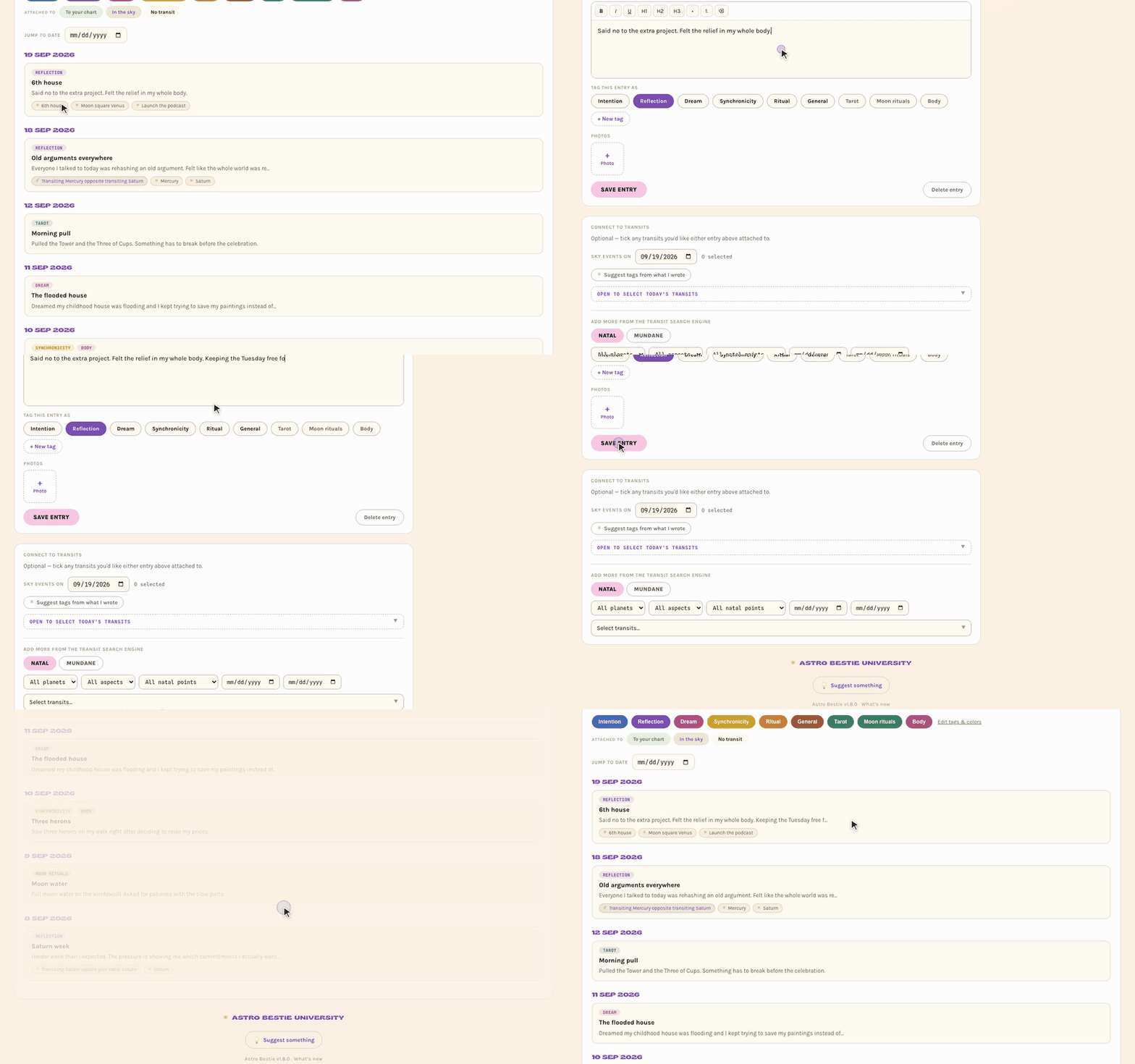
Why attaching matters. An entry attached to a transit appears on that transit's page forever. The next time that same transit comes around — often years later — what you wrote last time is waiting for you. This is the single most valuable habit in the app.
Let Astro Bestie suggest tags
Not sure which transit an entry belongs to? Write it first, then tap Suggest tags from what I wrote, just under Attached to. She reads what you wrote against the transits in orb on the entry's date and suggests only the ones that fit. Each suggestion shows:
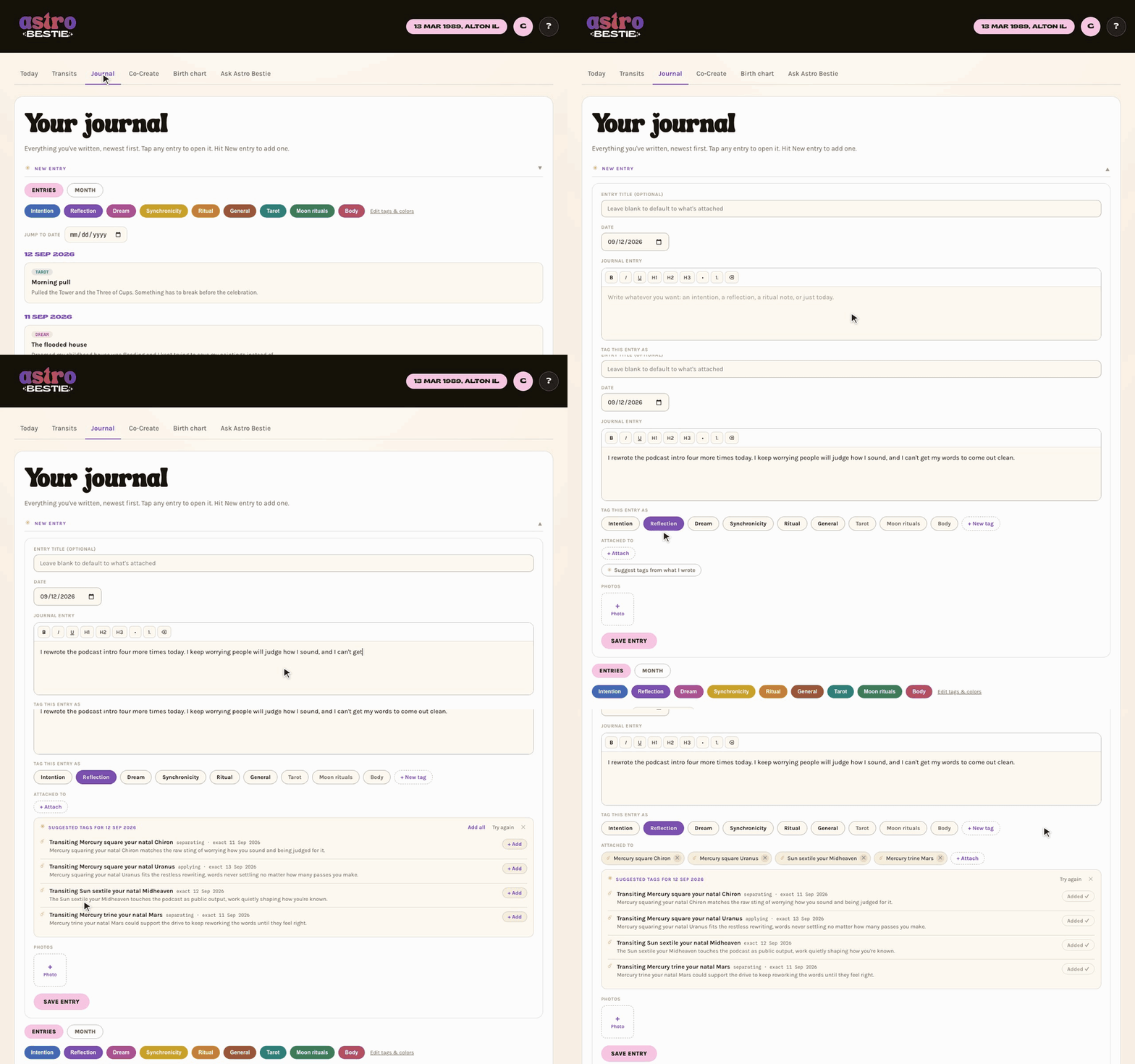
- whether the transit is applying, separating, or exact, and the date it was or will be exact;
- one line on why it fits what you wrote.
When no transit covers something, she may suggest a natal placement instead, such as your natal Mercury for an entry about feeling foggy. Tap + Add on the ones you want, or Add all. It works on new entries and on older ones you open to edit, and it always reads the sky on the entry's own date.
Writing up a day that's passed? Set the entry's date first, then ask for suggestions, so she looks at the transits from that day and not today's.
Attaching to a transit that isn't today's
The transit list inside an entry follows the entry's own date, not today's. That catches people out, because a new entry opens dated today and so offers today's transits. There are three ways to reach any other transit.
- Change the entry's date. In a new entry, set the date to the day the transit was exact. The transit list reloads for that day and you tick whichever ones you want — as many as apply.
- Start from the transit itself. Find it under Transits (Now, Search, or the Calendar), open it, and hit Write about this. The entry attaches to that transit whatever today's date is.
- Pin it to one specific pass. On a transit's page, the pass history lists every past and future time it perfects. Each one has Attach to this entry, so you can file your writing against the 2023 pass rather than the current one.
One entry, several attachments. Nothing limits you to a single one. Add as many transits, placements, houses, aspects, and projects as an entry genuinely touches, and it appears on every one of their pages.
Searching finds any transit. Type in the + Attach box and it searches every transit to your chart, not only the ones active on the entry's date, each labeled with its most recent pass. To pin an entry to one particular pass, use the pass history on the transit's own page.
Attaching to what the sky is doing
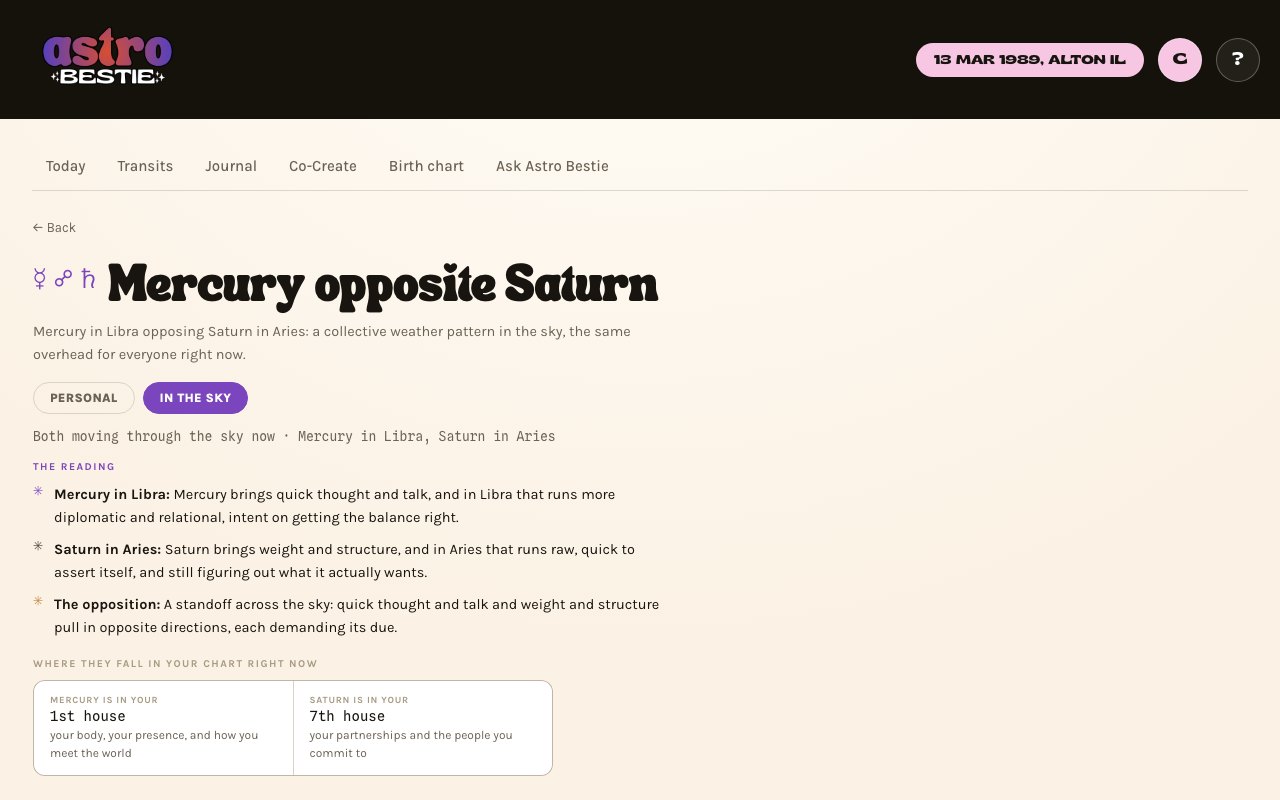
Some entries are about the sky rather than your chart: the day everyone seemed to be rehashing the same argument, or a full moon that felt loud for everybody. Search + Attach for a planet and a second list appears, In the wider sky: the aspects the moving planets make to each other, whether or not they touch your chart. Attach one and the entry is filed as, for example, Transiting Mercury opposite transiting Saturn, so it never reads as a transit to your natal Saturn.
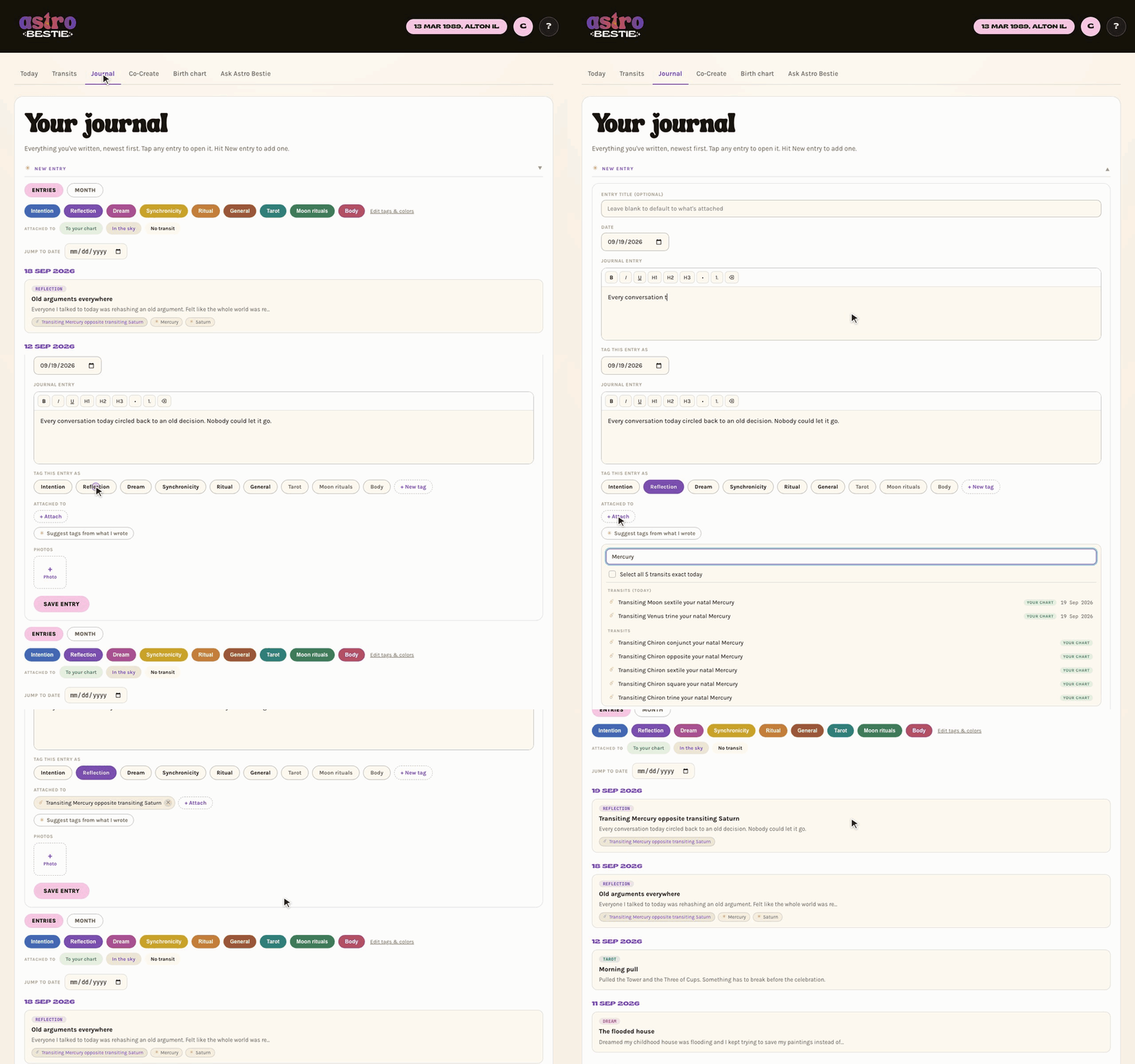
A sky aspect and a transit to your chart can involve the same two planets on the same day, and the app keeps them apart everywhere. Each has its own page, and what you write about one never appears under the other.
Templates
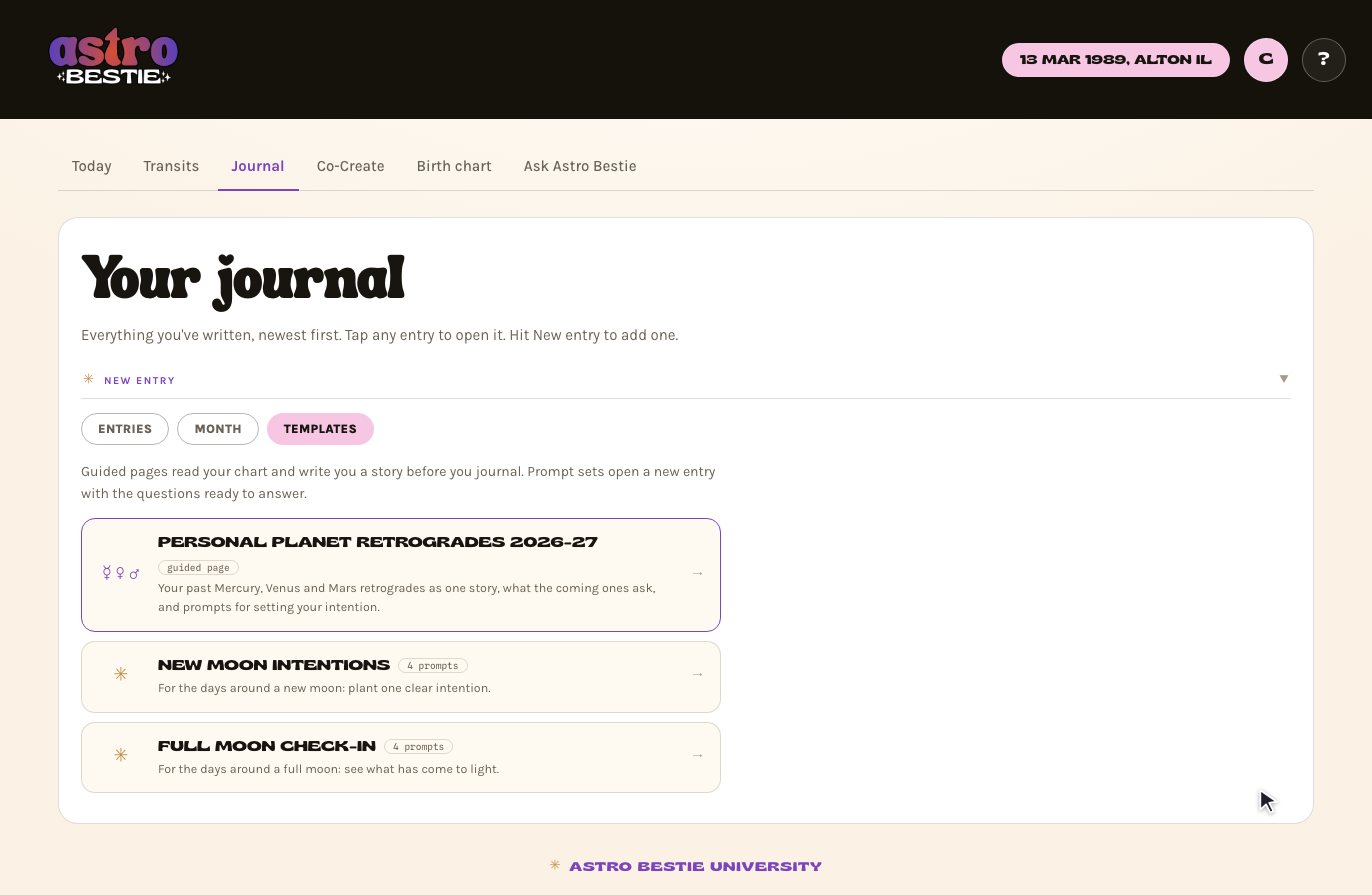
Tap Templates, next to Entries and Month, for ready-made ways to journal. There are two kinds:
- Guided pages read your chart and write you a story before you journal: the Weekly review & preview and Personal Planet Retrogrades.
- Prompt sets open a new entry with the title filled in and each question already in place as a heading. Write your answer under each one and save it like any entry.
Make a template your own
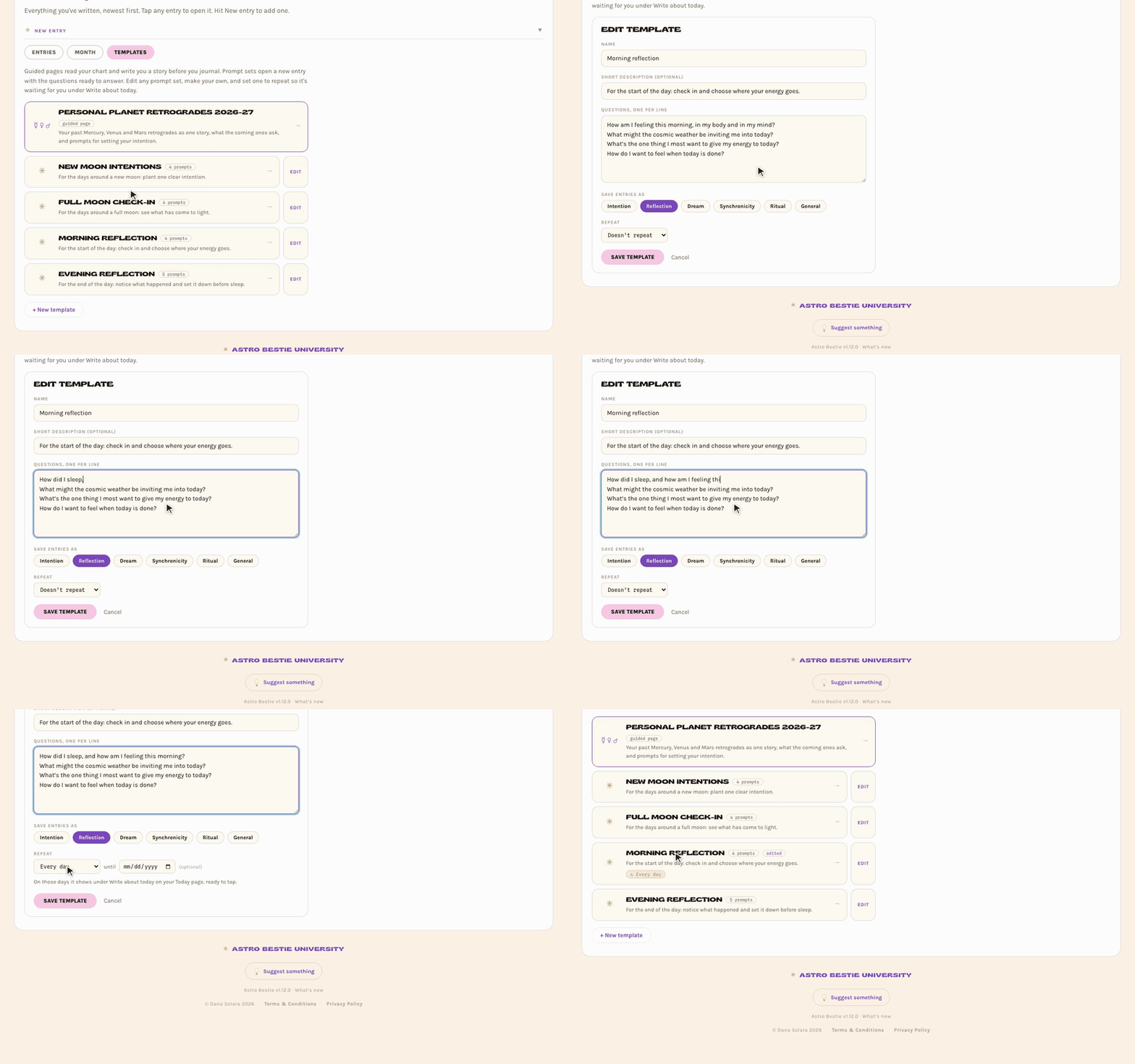
Every prompt set has an Edit button. Rename it, rewrite the questions (one per line), or change what its entries save as. Your edits are yours alone, and they follow you to any device you sign in on. Changed your mind? Open it again and tap Reset to original.
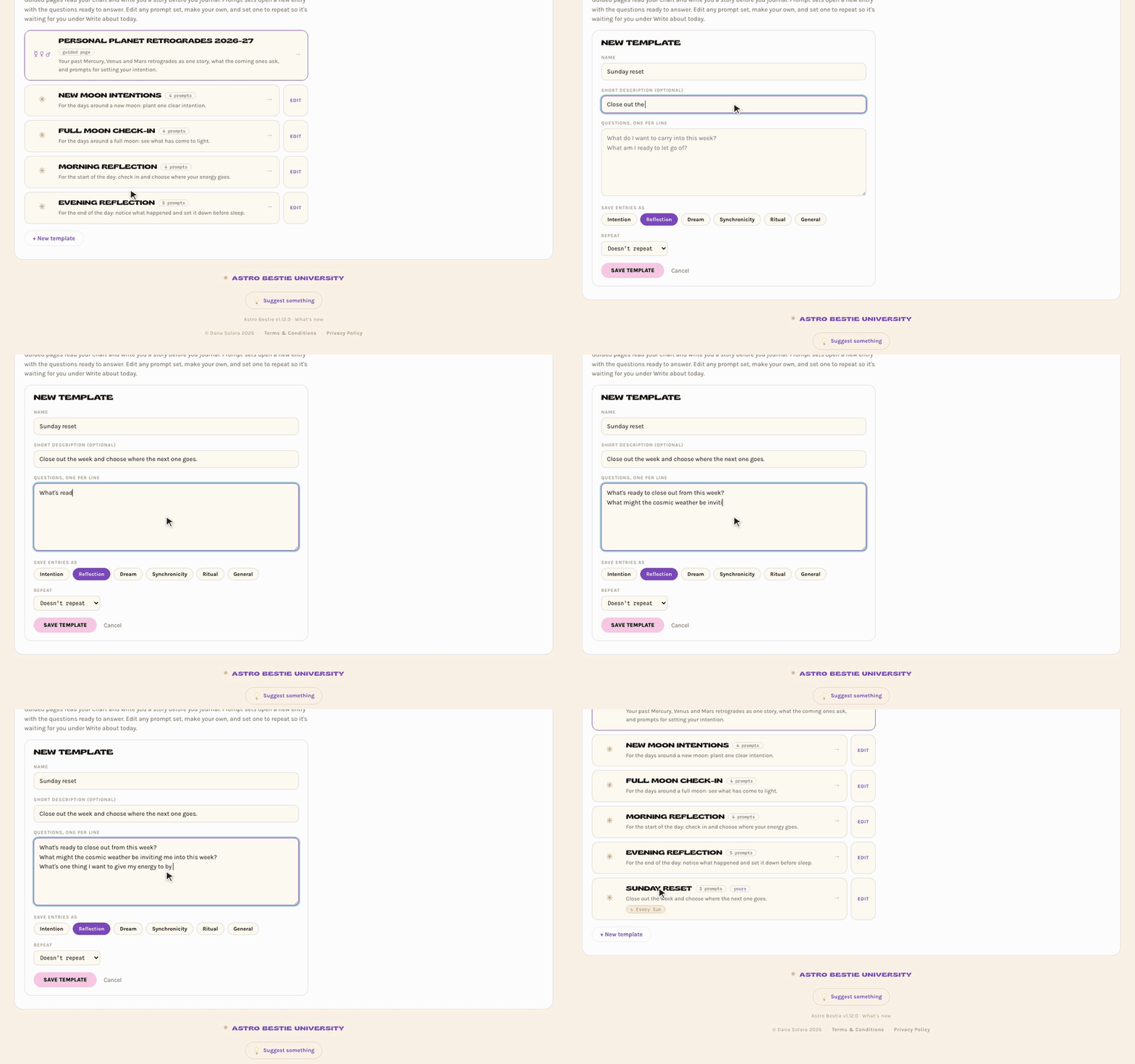
To make one from scratch, tap + New template at the bottom of the list. Give it a name, a line about what it's for if you like, your questions, and the kind of entry it saves as. Templates you make are marked yours, and you can delete them from the same form.
Templates that repeat
Any prompt set, built-in or yours, can repeat. In its form, choose Repeat: Every day, Certain days (then tap the days you want), Weekly, Every 2 weeks, Monthly, Every new moon or Every full moon. Weekly, every 2 weeks and monthly count from the start date you choose. Add an end date if you only want it for a season.
On the days it lands, the template is waiting on your Today page under Write about today, and the section shows how many are there. Tap one and its questions drop into the writing box, with the title and entry type already filled in.
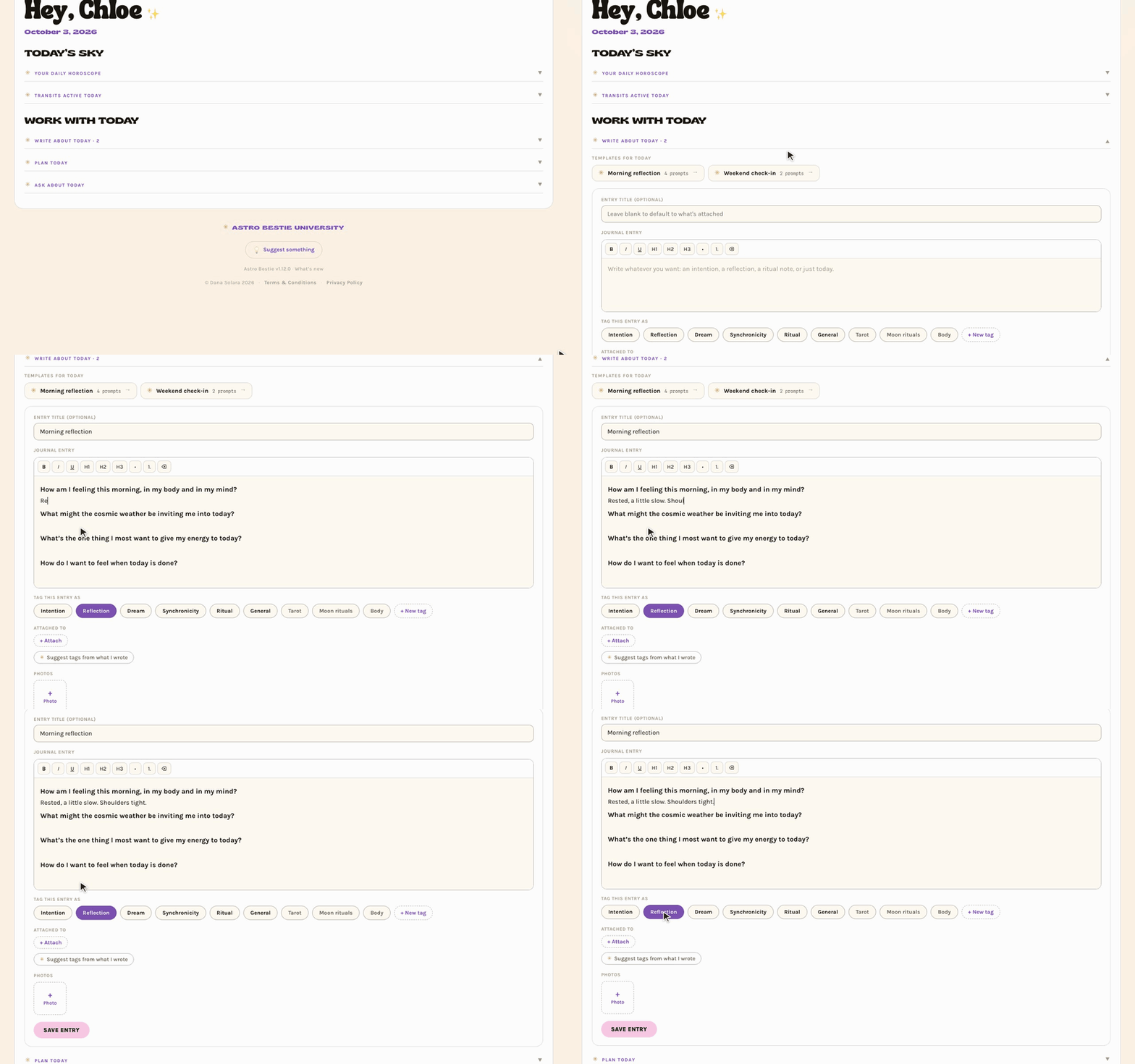
Moon templates show on the day of the exact new or full moon, in your own time zone.
Weekly review & preview
A guided page for turning the week: look back on the seven days you've just had, then plan the seven ahead with their cosmic weather. Open it from Journal › Templates. The page is split into two halves, Review and Preview. Tap either heading to fold it closed or open it again.
The week turns on the day you open it, so on a Sunday you review Sunday to Saturday just gone and preview the week starting today. Use ‹ Earlier and Later › to look at other weeks.
- In the background lists the slower transits to your chart that run through both weeks.
- Cosmic weather shows each day's exact transits, each labeled Personal (a transit to your birth chart) or Mundane (planets aspecting each other, sign changes, moon phases and stations: the weather everyone shares). Tap one to open its page, and Back brings you right here.
- Your journal collects everything you wrote that week. Tap an entry to read it in full.
- Your tasks and habits shows what you got done: a tick for one-off tasks, and a tally like 4 of 7 days for habits. Anything you didn't get to can move straight into the coming week.
Tap Read my week and Astro Bestie reads both weeks through your chart, your journal and your tasks. You get a review of the week behind with four reflection questions, then a preview of the week ahead, four questions for setting an intention and three affirmations. Tap Write about this ↓ under any question and it drops into the writing box as a heading, ready to answer. What you write here saves to your journal, and next week's review reads your intention back to you.
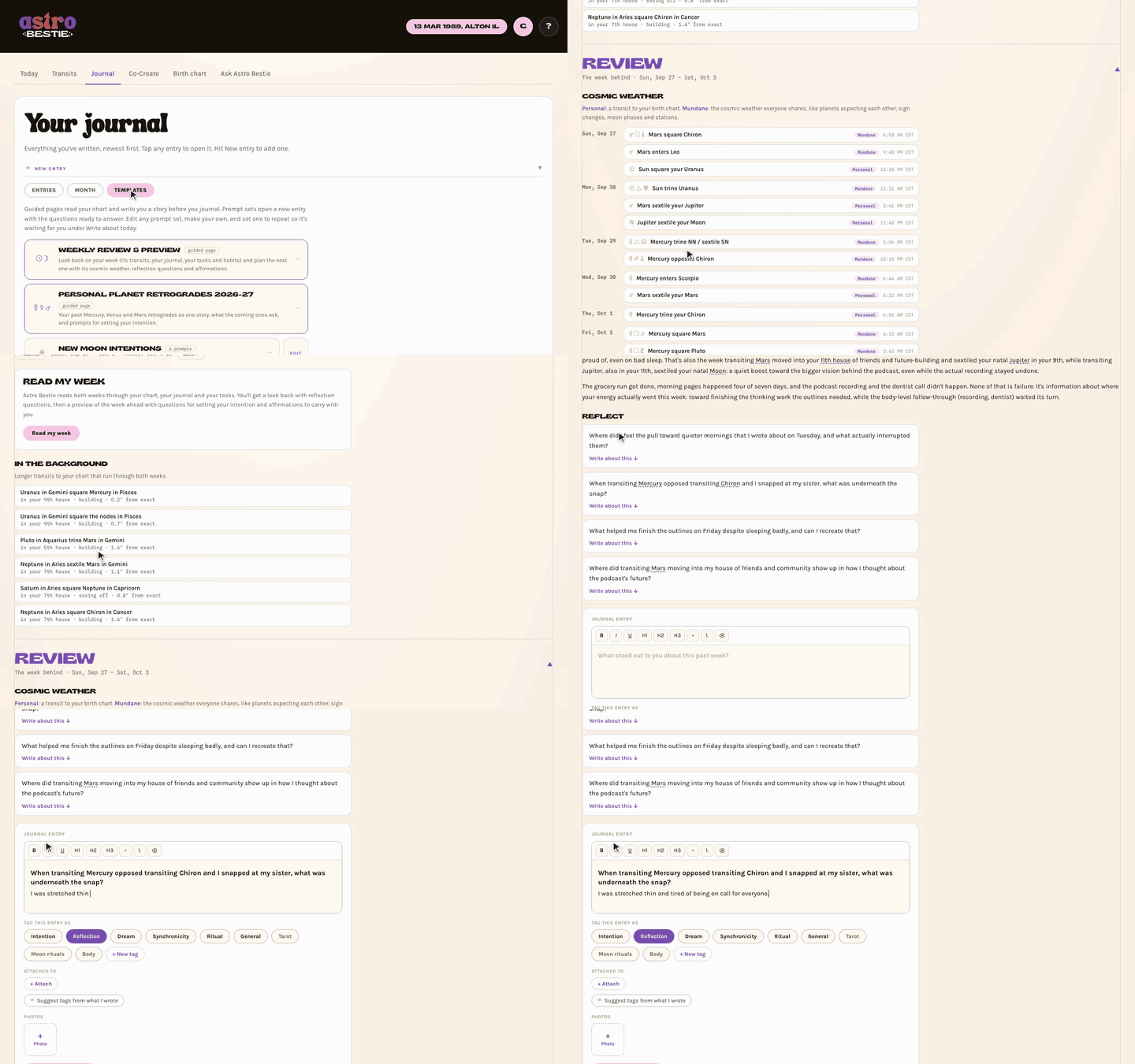
Wrote or planned more since? Tap Read my week again for a fresh reading that includes it.
Plan your week
Under Preview, Plan your week lays out the days ahead. Habits and repeating steps sit in one box each, with the days they're open underneath: tap a day to tick it off. One-off tasks sit under their day, where you can tick them, move them to another day, or open their project step. To-dos still open from earlier weeks wait under Still open until you give them a day.
To add something, choose Task (one day) or Habit (every day from one day to another), name it, and choose whether it goes in your to-dos or one of your projects. Everything you add shows on Today and in your calendar too.
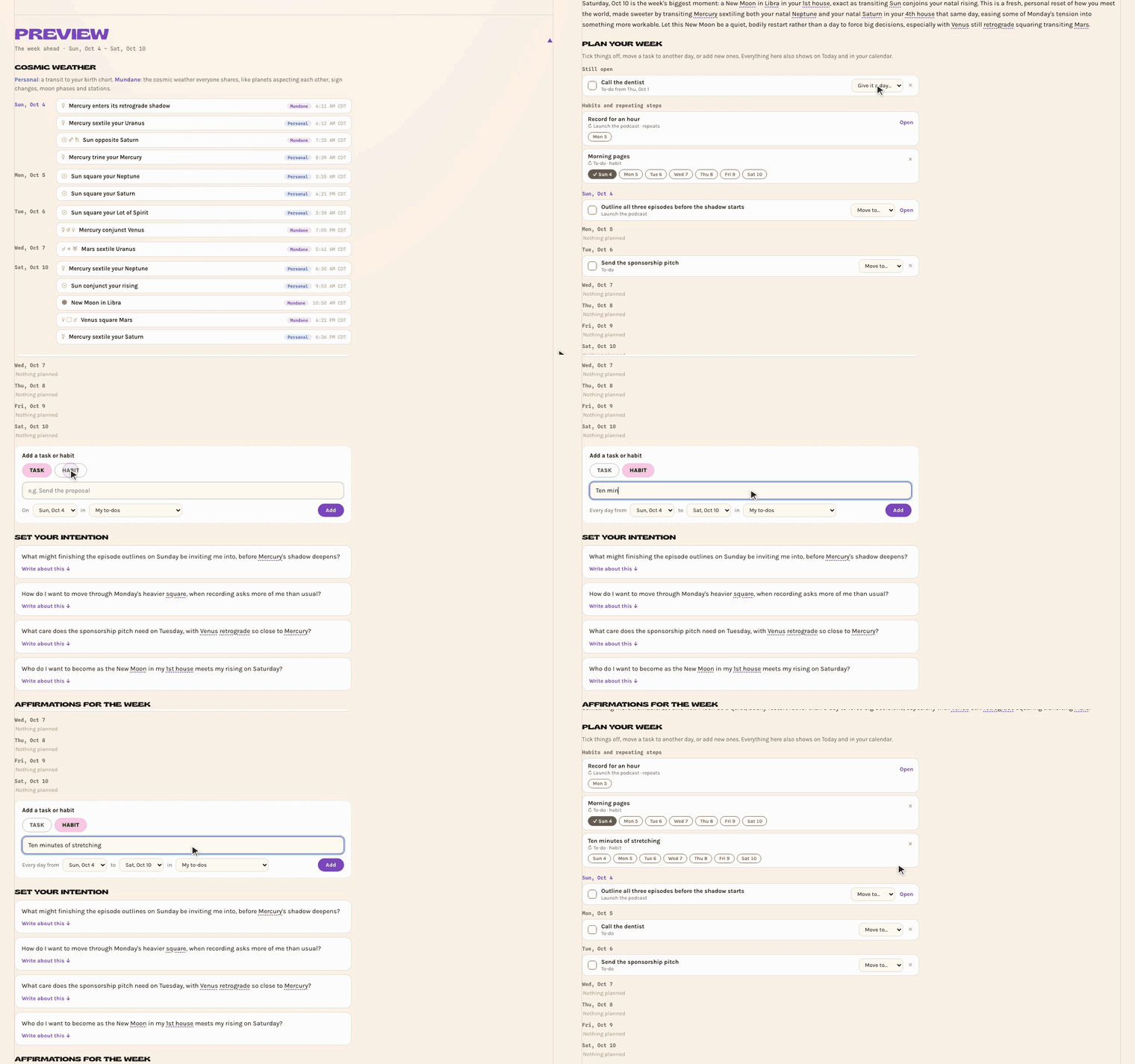
Affirmations on your Today page
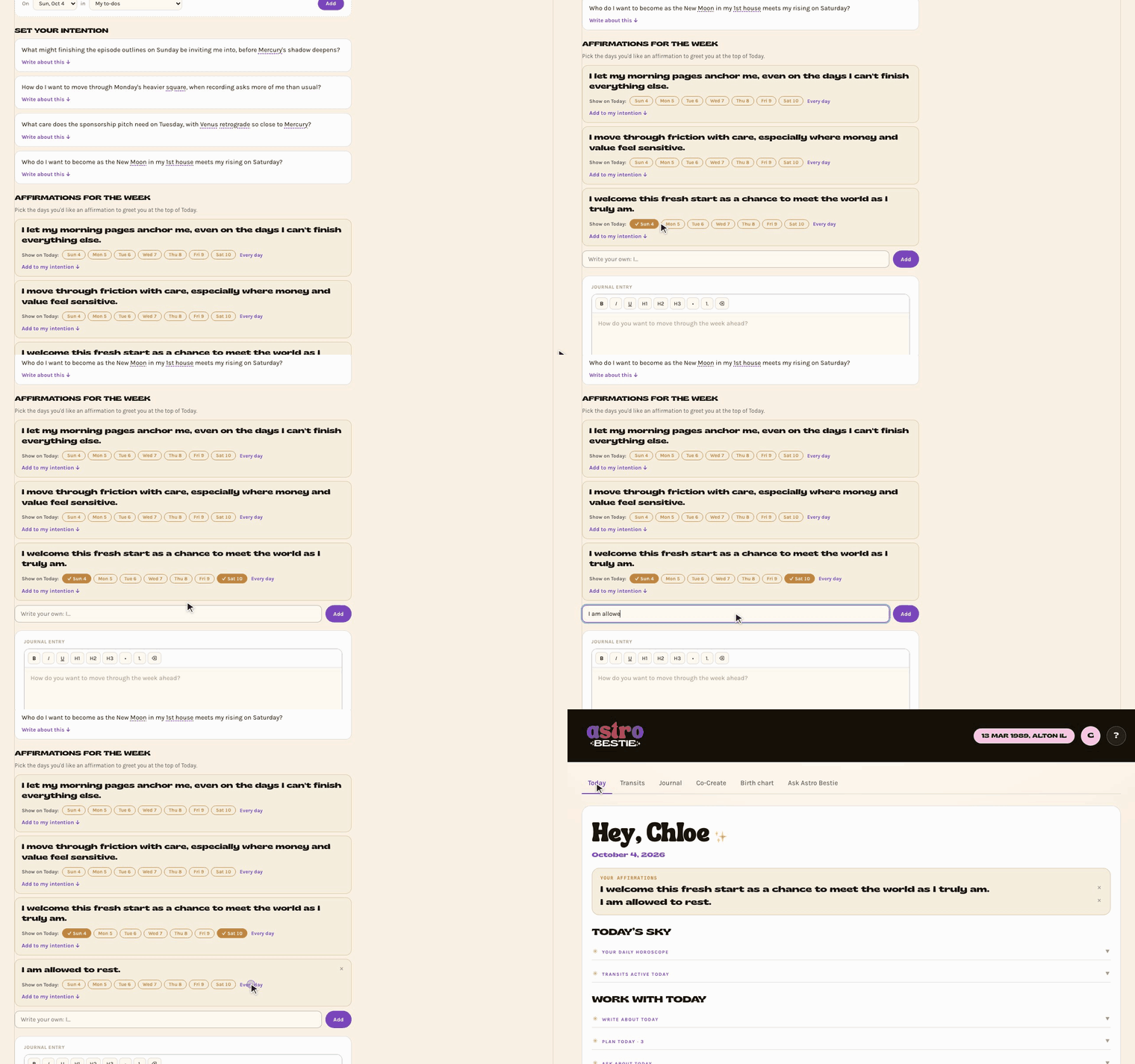
Each affirmation has a row of days under it. Tap the days you'd like it to greet you, or Every day, and on those days it sits at the top of your Today page. Write your own in the box underneath, and tap Add to my intention ↓ to bring one into what you're writing. Tap the × on Today to hide an affirmation for just that day.
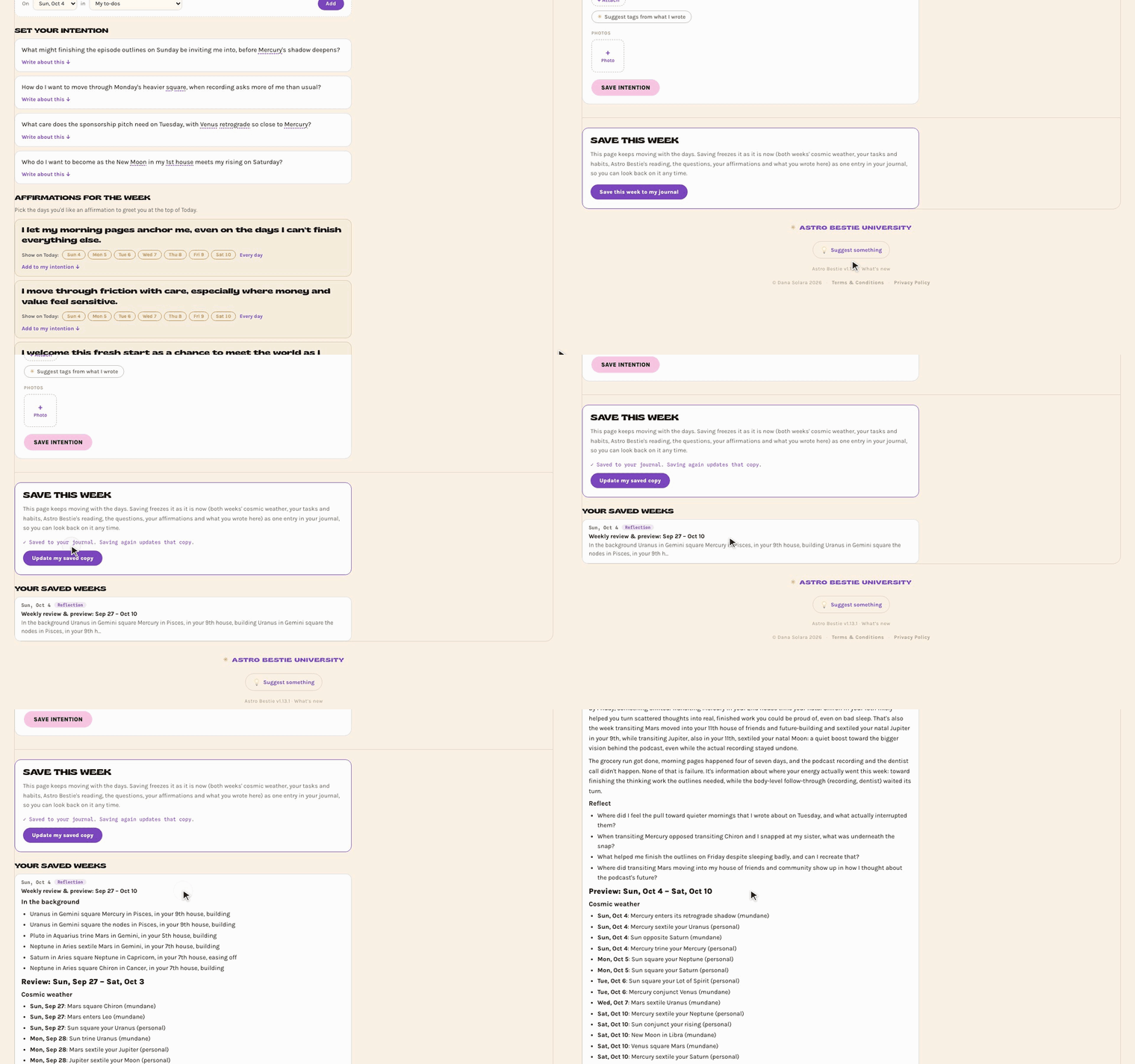
Save a week to look back on
The weekly page keeps moving with the days. When you're done with a week, scroll to the bottom and tap Save this week to my journal. It freezes the page as one journal entry: both weeks' cosmic weather, your tasks and habits, Astro Bestie's reading, the questions, your affirmations and what you wrote. Saving the same week again updates that copy. Your saved weeks are listed at the bottom of the page and in your journal, so you can see how your weeks have gone over time.
The planet journal
Open any planet as it moves through the sky right now, or as it sits fixed in your birth chart, and everything you've written about it collects in one place. Tap a planet on the wheel in Transits → Now, or in the positions list beside it: a planet in the sky opens its planet page, and a planet in your chart opens its placement on the Birth chart tab.
Co-Create
Projects Timed to the Astrology
Co-Create is a space for project planning with astrology.


- Hit New and choose Blank project or a template.
- Name the project and set your intention: what you're actually reaching for.
- Optionally give it a cosmic connection: a transit to your chart, a planet, a retrograde, or a moment in the lunar cycle.
- Add steps, and choose When each one happens and How you tick it off (more on both below).
- Keep notes as you go, and mark the project active, paused, or complete.
Steps appear on your Today page and in your calendar while they're open, so you don't have to remember to check the project. Only active projects do this: pause a project or mark it complete and its steps step back until you make it active again.
Start from a template
Tap New and choose Moon cycle practice to start with a project that's already set up. It gives every phase of the Moon its own focus: seed at the new moon, build at the first quarter, harvest at the full moon and release at the last quarter. Use it for a creative practice (writing, art, music, content), for manifesting something you want to call in, or for any goal you want to grow one cycle at a time.
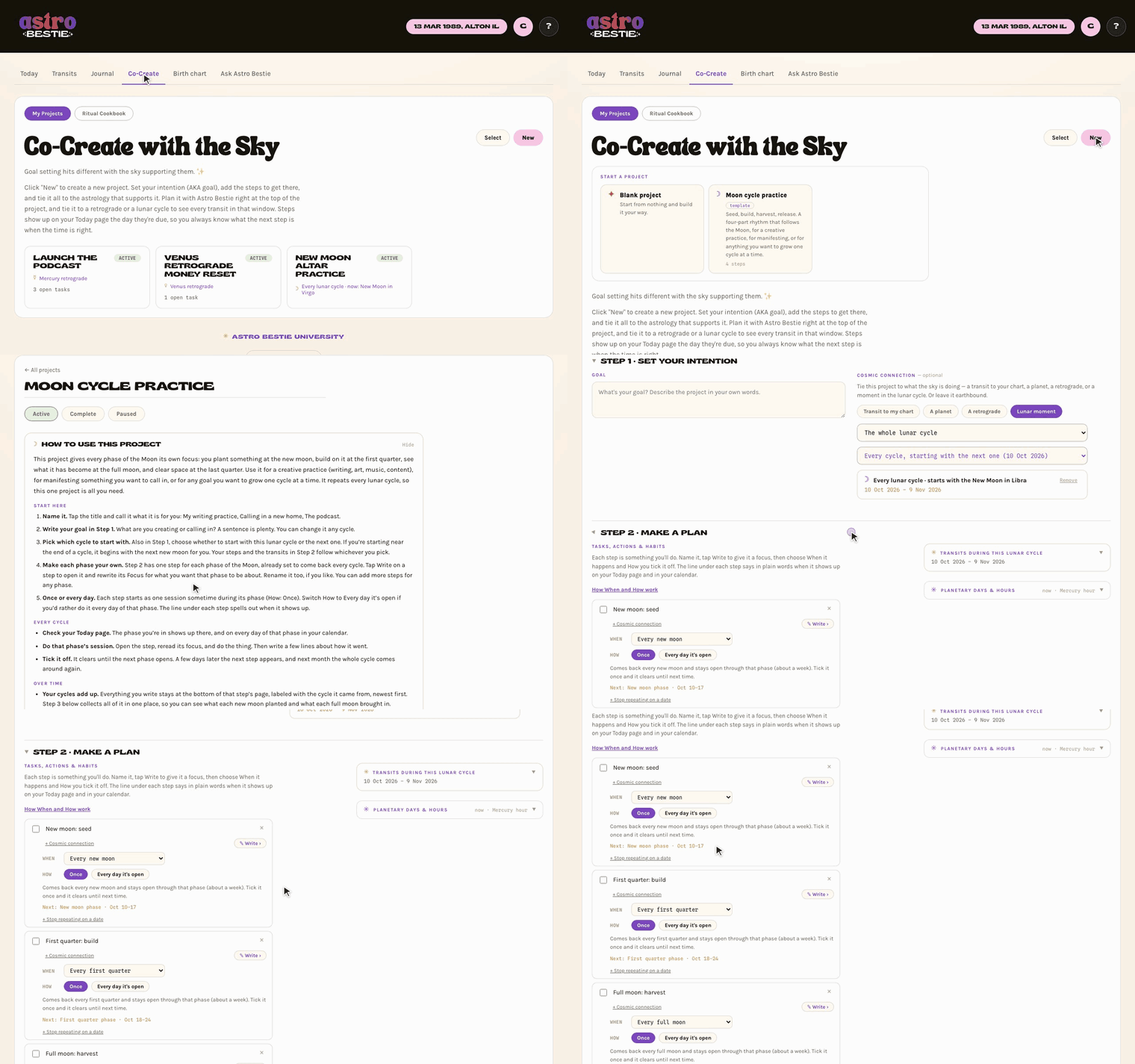
- It comes with a guide. How to use this project sits at the top and walks you through starting it. Tap Hide once you know it.
- Make it yours. Rename it, write your goal in Step 1, and open each step with Write to rewrite its Focus: what you want that phase to be about.
- Save your own. At the bottom of any project, Save as template keeps a copy of its steps, focus and timing to start new projects from. Your notes stay behind. Templates you save show up under New, marked yours.
A project saves itself as you go. Save as template is only for making a reusable copy.
When and How: setting up a step
Each step has two settings.
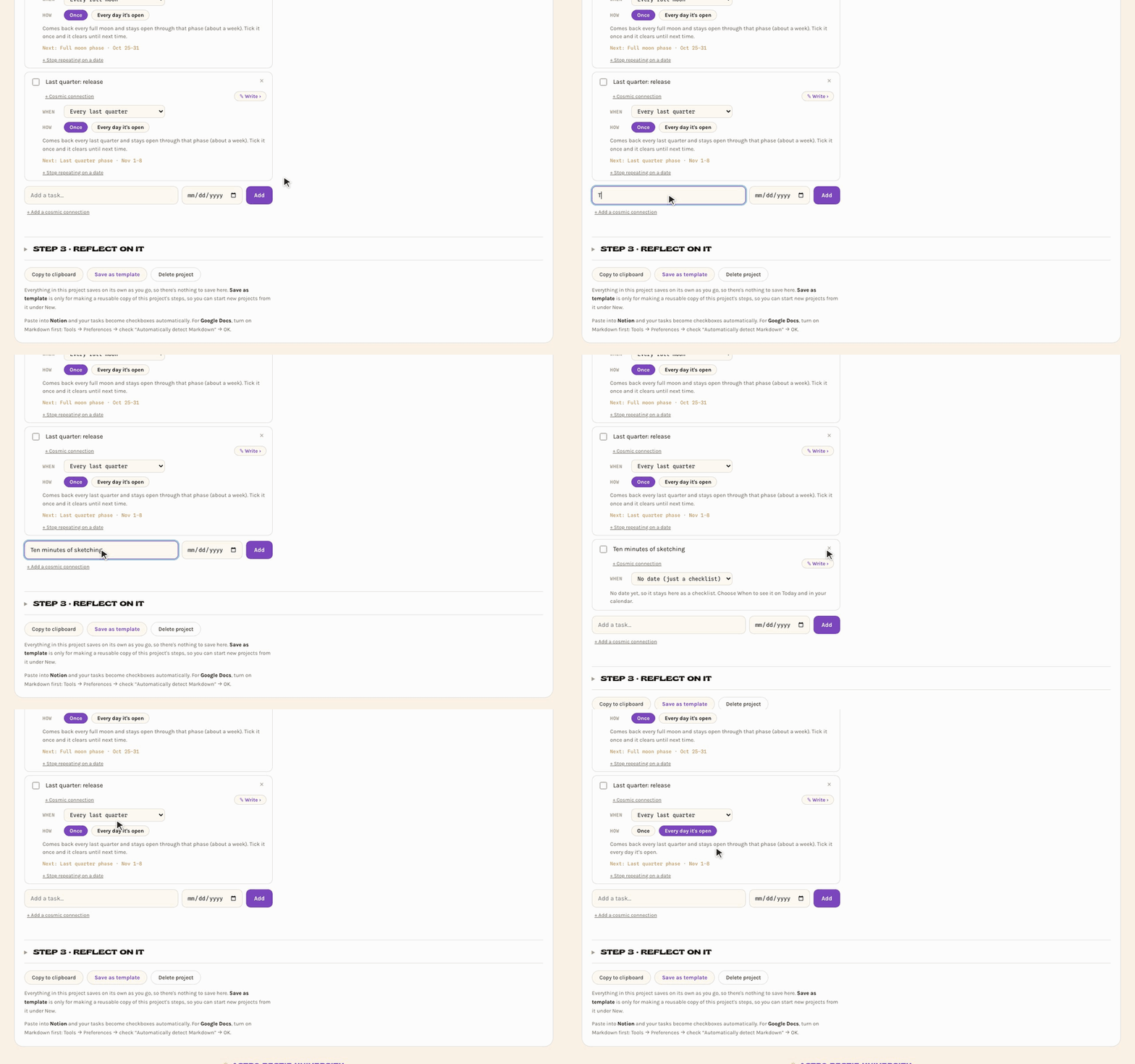
- When it happens: no date (it stays a checklist), on one day, over a few days, or on a rhythm. Pick every new moon, first quarter, full moon or last quarter and the step comes back every lunar cycle, open for that whole phase (about a week). You can also pick every day, week, two weeks or month.
- How you tick it off: Once clears it until it comes around again. Every day it's open makes it a habit you tick each day, with a count (3 of 7 days).
A line under each step says in plain words when it shows up, and a gold line shows when it's open now or opens next. If you ever want a repeating step to end for good, tap + Stop repeating on a date. Most steps never need it.
One project, every cycle
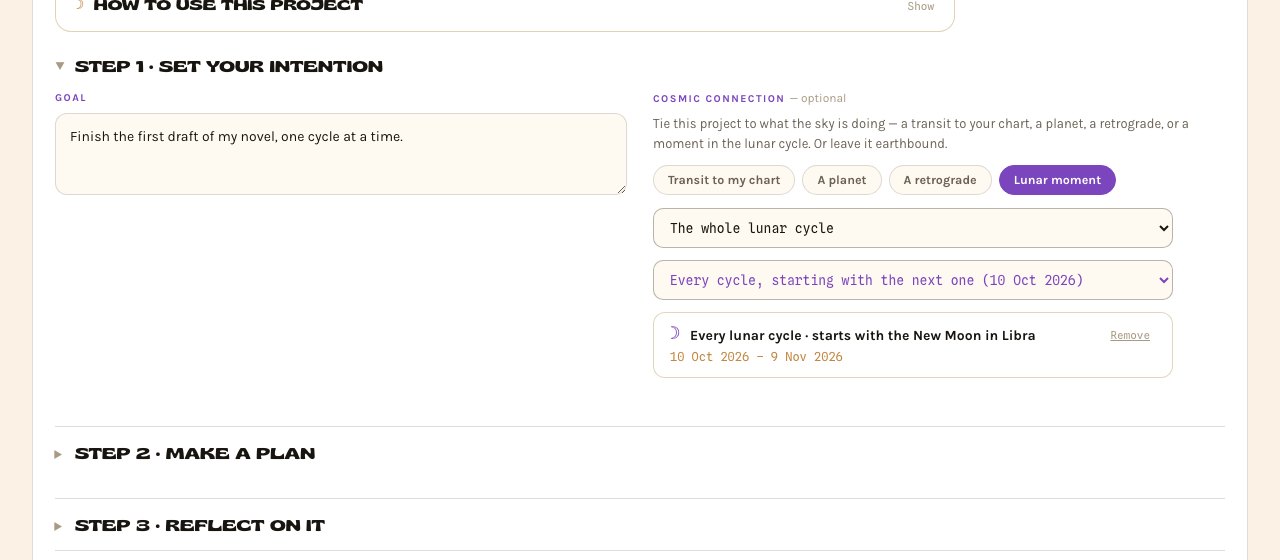
Connect a project to the whole lunar cycle and choose Every cycle, and it rolls over at each new moon, so the one project is all you need. Choose whether it starts with this cycle or the next one: Step 1, its list of transits and every moon step all follow your choice. A project started from Moon cycle practice near the end of a cycle begins with the next new moon on its own.
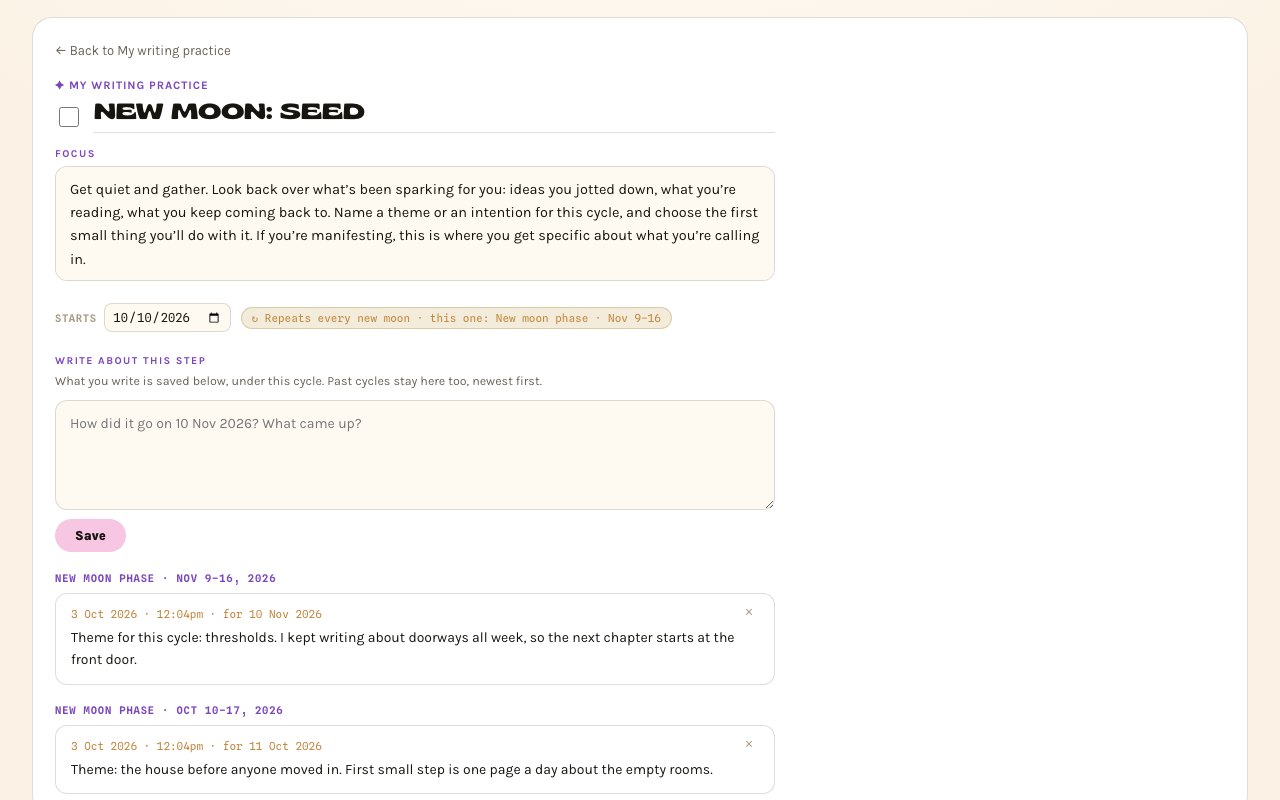
What you write on a repeating step stays on that step's page, under the cycle it belongs to, newest first. After a few months, the New moon step holds every seed session you've written.
Tidy up your projects
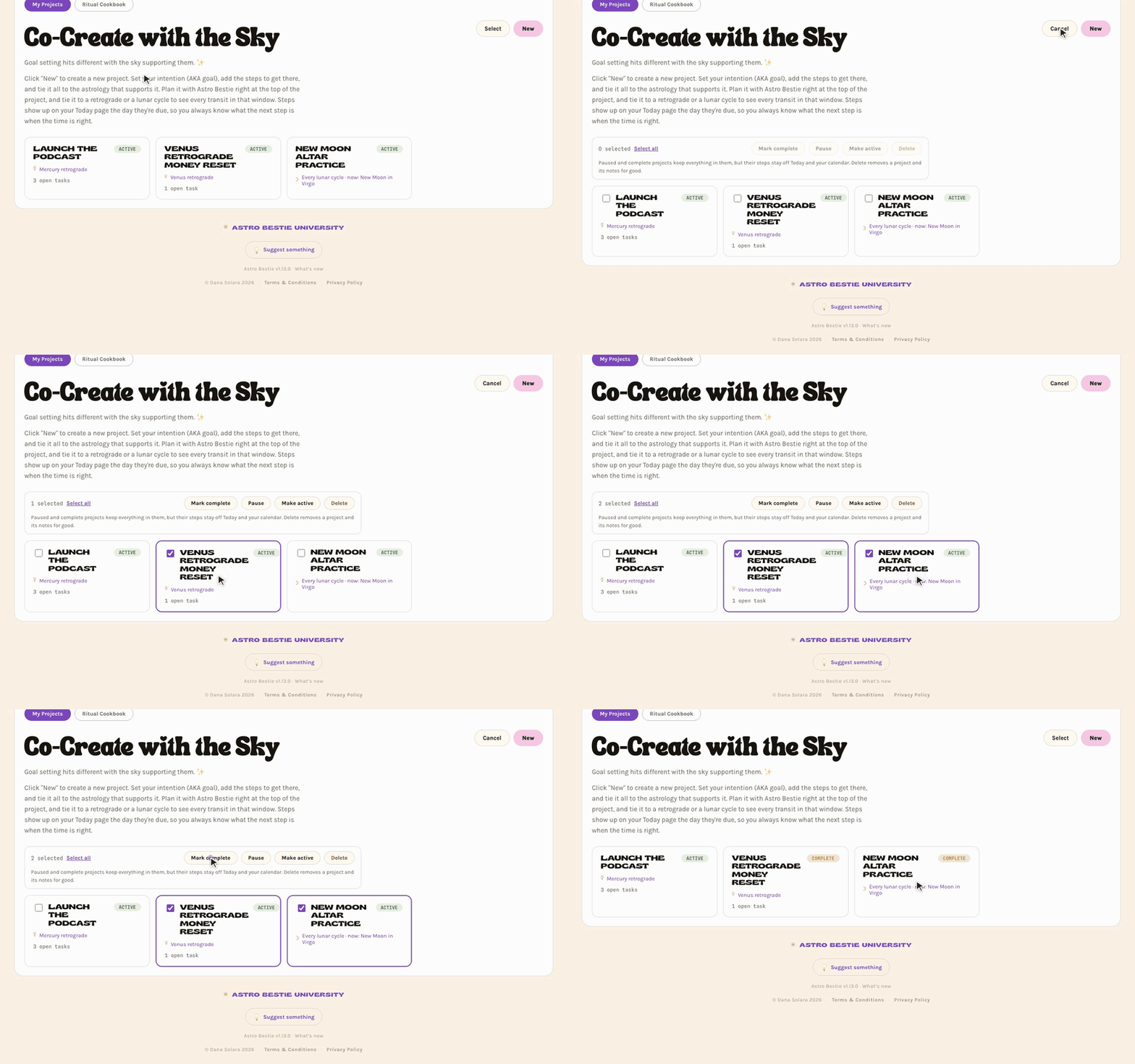
On your project list, tap Select, tick the projects you want, and choose Mark complete, Pause, Make active or Delete. Paused and complete projects keep everything in them. Delete removes a project and its notes for good, and asks first.
Plan around a retrograde or a lunar cycle
Connect a project to a retrograde or a whole lunar cycle, and Make a plan gets a Transits during list of everything that goes exact in that window. It sits at the top of the right-hand column and starts closed; tap it to open. Switch between Personal (transits to your chart) and Mundane (aspects between the planets in the sky).
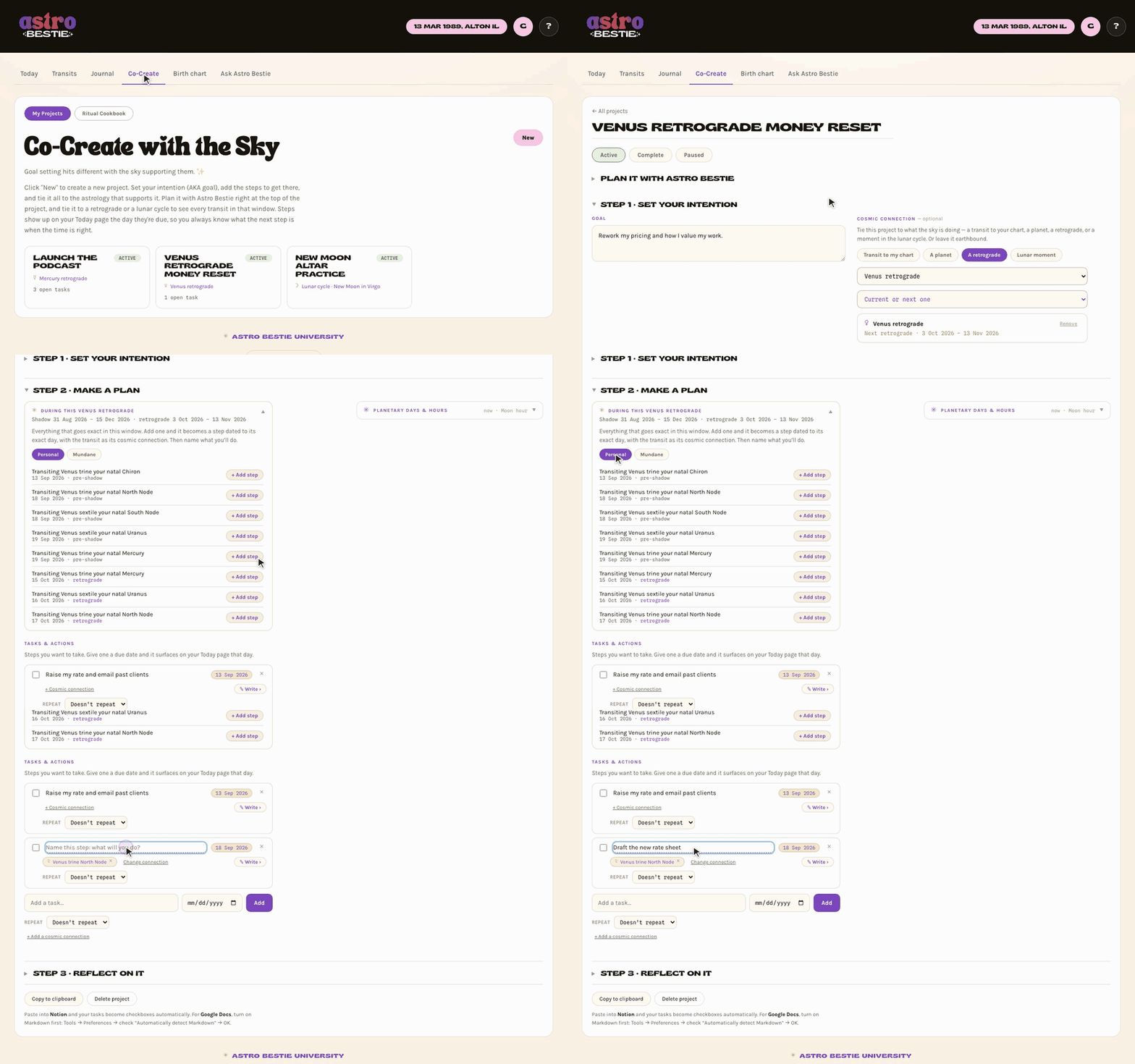
- A retrograde includes its shadow: from the day the planet first reaches the degree it will retrograde back to, until it clears the degree where it turned. Each date is marked pre-shadow, retrograde, or post-shadow.
- A lunar cycle runs from one New Moon to the next, and lists its moon phases plus every transit that goes exact that month.
Tap + Add step on any row. It becomes a step dated to that exact day, with the transit as its cosmic connection. Then name the step in your own words: the transit is the connection, the step is what you'll do.
Plan it with Astro Bestie
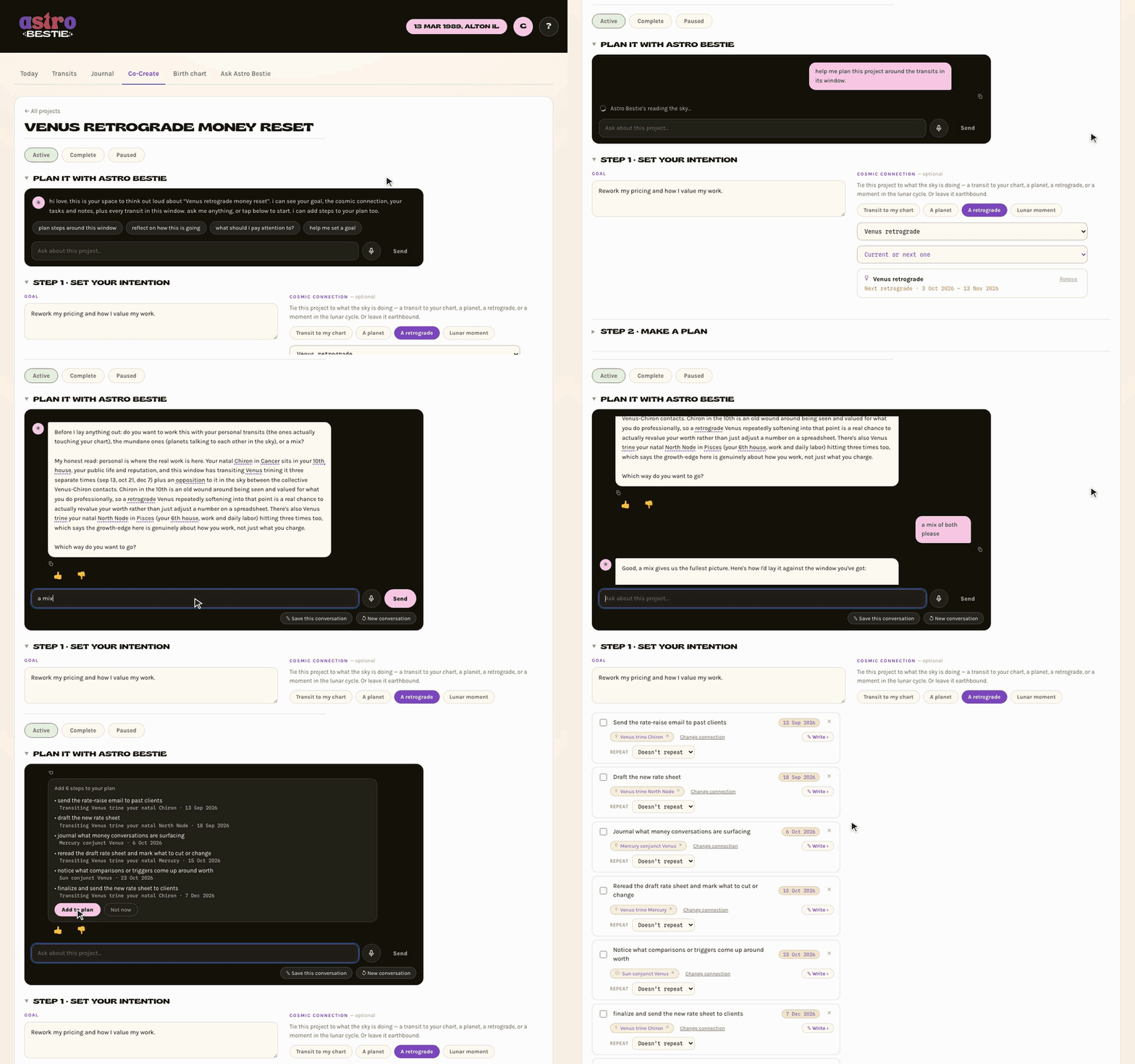
Astro Bestie sits at the top of every project you start yourself (the Moon cycle practice template leaves her out to keep it simple). She can see your goal, your steps and notes, and every transit in the project's window. Tap plan steps around this window, or just ask. Before she lays out a plan, she'll ask whether you want to work with your personal transits, the collective sky, or a mix, and tell you which looks most impactful for your goal. Her plan arrives with an Add to plan button, and nothing is added until you tap it. Use New conversation to start fresh.
Every step has its own page
Tap Write on a step, or tap the step on your Today page or the calendar, to open its page. You can rename it, give it a Focus, change its date, mark it done, open its transit, and write about how it's going. A weekly step opened from a particular day knows which week you're writing about.
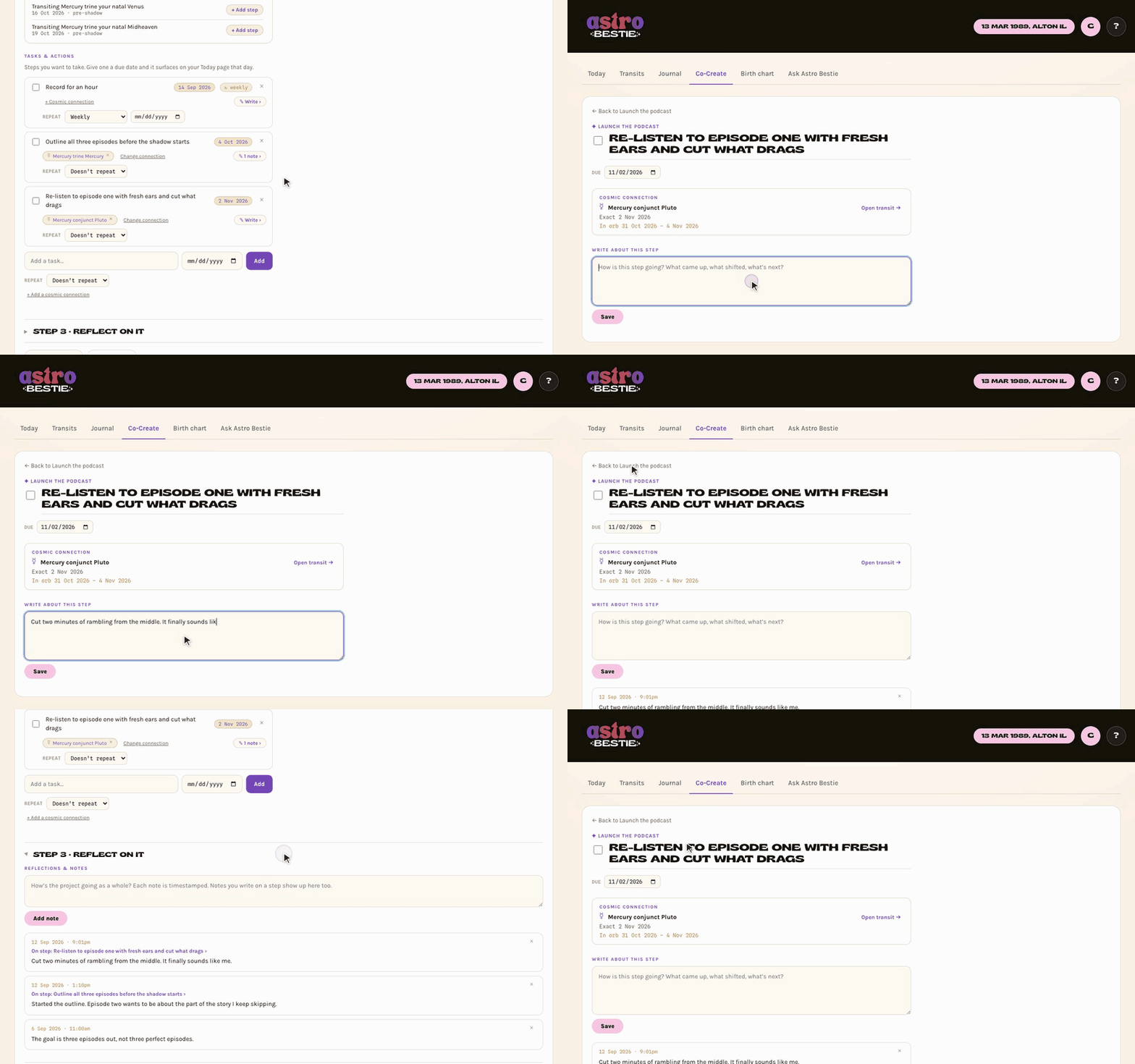
Everything you write on a step also appears under Step 3 · Reflect on it, labeled with the step, next to the notes you keep on the project as a whole. It's one place to see the whole story of a project.
Ritual Cookbook
The Pantry, the Recipe Builder, and Ritual Bestie
The Ritual Cookbook is an add-on that turns astrology into something you actually do. It lives under Co-Create → Ritual Cookbook, and it has two halves: The Pantry, a library of individual rituals, and the Recipe Builder, where you combine them into one practice. Ritual Bestie is the chat that knows both.
Don't have it yet? The tab shows as Ritual Cookbook 🔒 with a preview of what's inside. Everything below unlocks together.
The Pantry
Fifty-three rituals, described as ingredients rather than prescriptions. Each one tells you what it's for and how long it takes, so you can pick by the time you actually have.

Three ways to narrow it down:
- By what you need — boundaries and protection, calm and regulate, clarity and decision, confidence and visibility, devotion and sacred structure, energy and motivation, grief and tenderness, ritual basics, and the Wheel of the Year.
- By the time you have — Micro (1–2 min), Quick (5 min), Medium (15–20 min), or Deep (30–60 min).
- By element or moment — Air, Earth, Fire, Spirit, or Water; morning to set the tone, midday reset, evening close, before a hard conversation, after a hard day, or in the moment.
Or don't choose at all. Ask Ritual Bestie to build your perfect ritual — she'll pick against your actual transits, or put a whole recipe together for you. She's at the end of this tab.
Opening a ritual

Every ritual page carries the same parts:
- The tags — its element, how long it takes, and what it's for.
- Schedule it — pick a day, optionally repeat it daily, weekly, every two weeks, or monthly, and hit Add. It then appears under Rituals for today on your Today page on the day it's due.
- When to use it — the situations it's actually for.
- The practice — the steps themselves.
- Reflect on it — a journal entry already attached to that ritual, so what you wrote is waiting the next time you open it.
The Recipe Builder
A recipe is several rituals in order, each with its own time box — one practice rather than seven separate things to remember.

You can start from a starter recipe — an all-purpose ritual plus one for each point on the Wheel of the Year — or hit + Build a recipe and assemble your own from the Pantry. Each card shows its ingredients in order with their timings and the total length, so you know what you're committing to before you open it.
Editing a recipe

- Give the recipe a name and say what it's for under Purpose of this ritual.
- Reorder steps with the arrows, remove one with the ×, or add more from the Pantry.
- Change any step's minutes. The total at the top updates as you go.
- Rewrite a step's how-to in your own words. Reset how-to puts the original back if you'd rather.
- Set a start date and a repeat, then Add to my list to put it on your Today page.
Editing a starter recipe doesn't spend it. Change what you like and save it as your own; the original stays where it was.
Ritual Bestie
Ritual Bestie is a second conversation, alongside the usual one. Open Ask Astro Bestie and switch to the Ritual Bestie tab.

She knows everything Astro Bestie does — your chart, your transits, what you've written — plus how rituals are built and every ingredient in your Pantry. She asks you a few things before she suggests anything, rather than guessing.
- Ask her to pick. Tell her what's going on, or how much time you have, and she'll choose against what's actually transiting your chart.
- Ask her to add it. She can put a ritual straight onto your Today page.
- Ask her to build one. "Make me a morning practice" or "put those together" and she'll assemble a recipe, in order, timed, ready to save.
She offers these as a button you tap to confirm. Nothing is added to your list or your cookbook until you say so.
Birth Chart
Placement by Placement
Your whole chart, read through a traditional (Hellenistic) lens with whole-sign houses.

- Elements and modalities summarise the chart's overall balance at a glance.
- The wheel shows your placements and houses.
- Positions lists every point with its exact degree and sign. ℞ marks a retrograde planet.
- Aspects is the grid of angles between your own natal points.
Day chart or night chart
Right under the title, your chart says whether you were born by day or by night. It's the first thing a traditional reading looks at, because it decides whether the Sun or the Moon leads your chart. Hover over it to see which one leads yours.
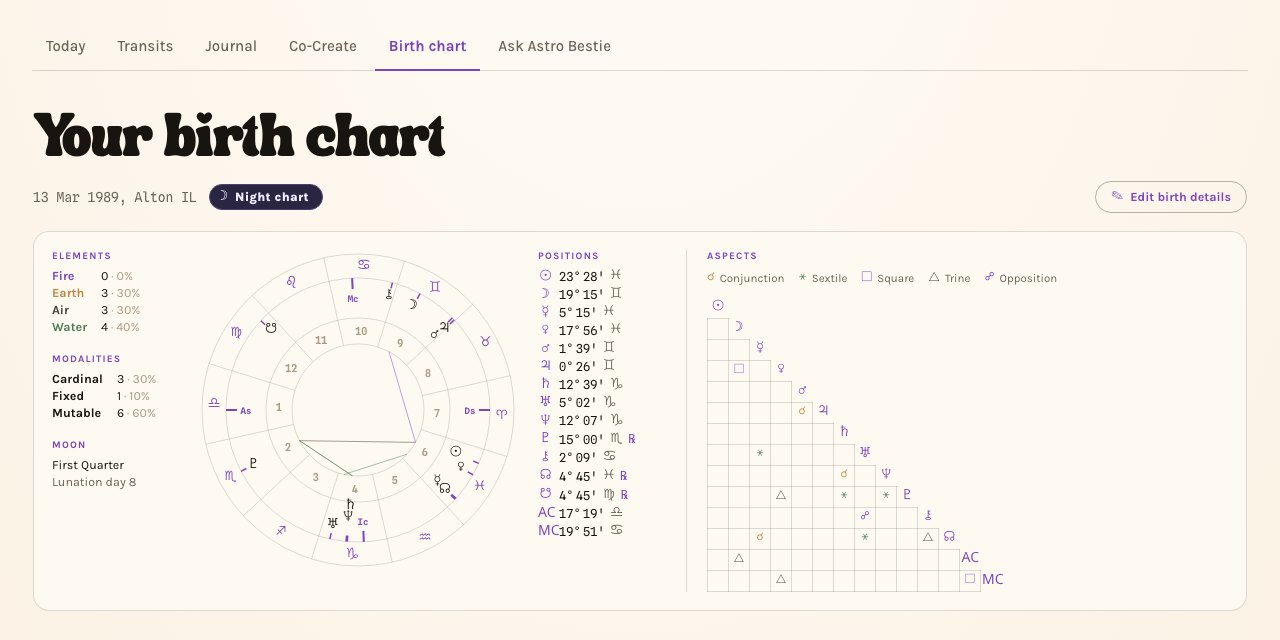
Tap any placement to open it in full: what it means, the house it rules, its condition, and everything you've ever written about it.
Lots of Fortune and Spirit
Two calculated points that traditional astrology treats as central. Fortune speaks to circumstances and the body; Spirit to action and what you set in motion. Both are included with your membership.
Path to Purpose Upgrade adds the other five Lots — Eros, Necessity, Courage, Victory, and Nemesis — with full readings for all seven, and Zodiacal Releasing alongside them. One upgrade, both tools.
Zodiacal Releasing
Zodiacal Releasing has its own tab at the top of the Birth chart page: tap Zodiacal Releasing next to Birth chart. It reads your life as chapters and peak periods from your Lots of Fortune and Spirit. Upgrade
Ask Astro Bestie
The Conversation
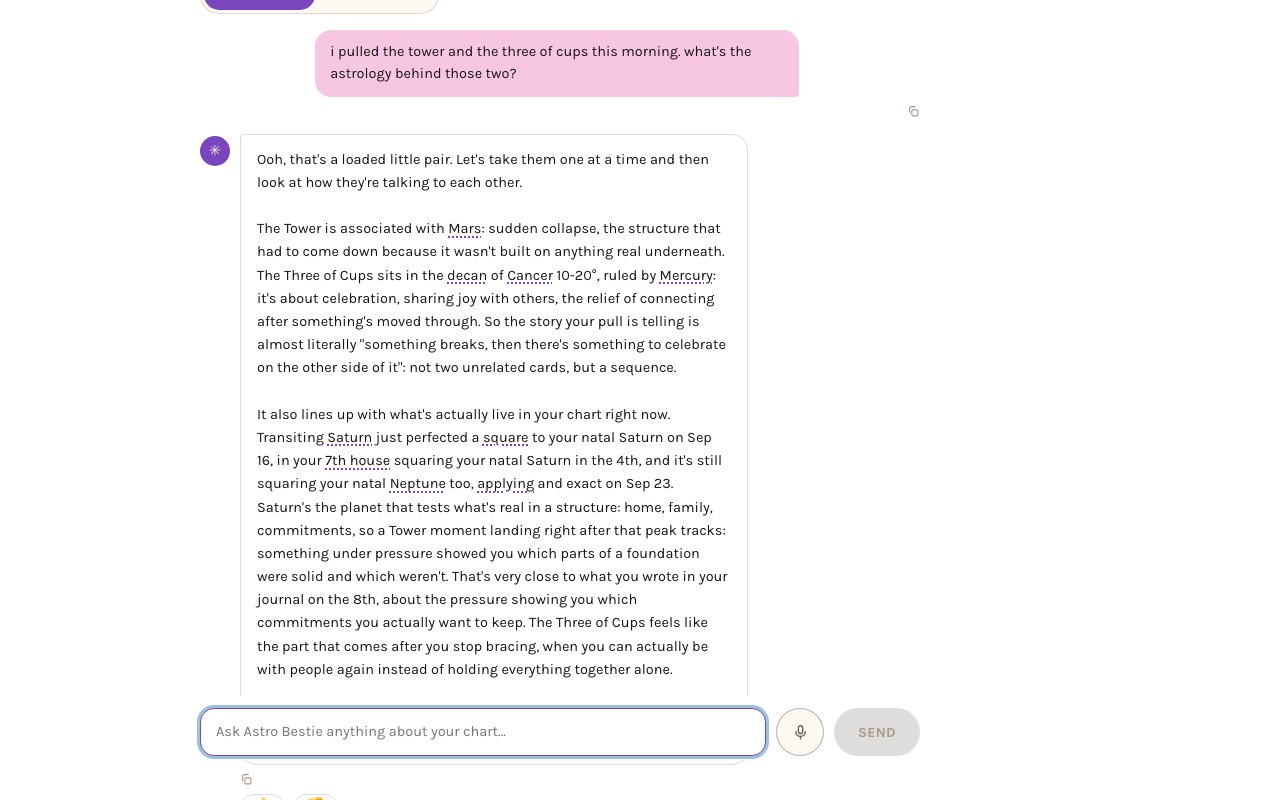
Astro Bestie can see your whole chart, what's transiting right now, and everything you've written in your journal: reflections and intentions, dreams, synchronicities, rituals, tarot pulls, general notes, and anything under tags of your own. She's built to reflect what's actually there, not to predict.
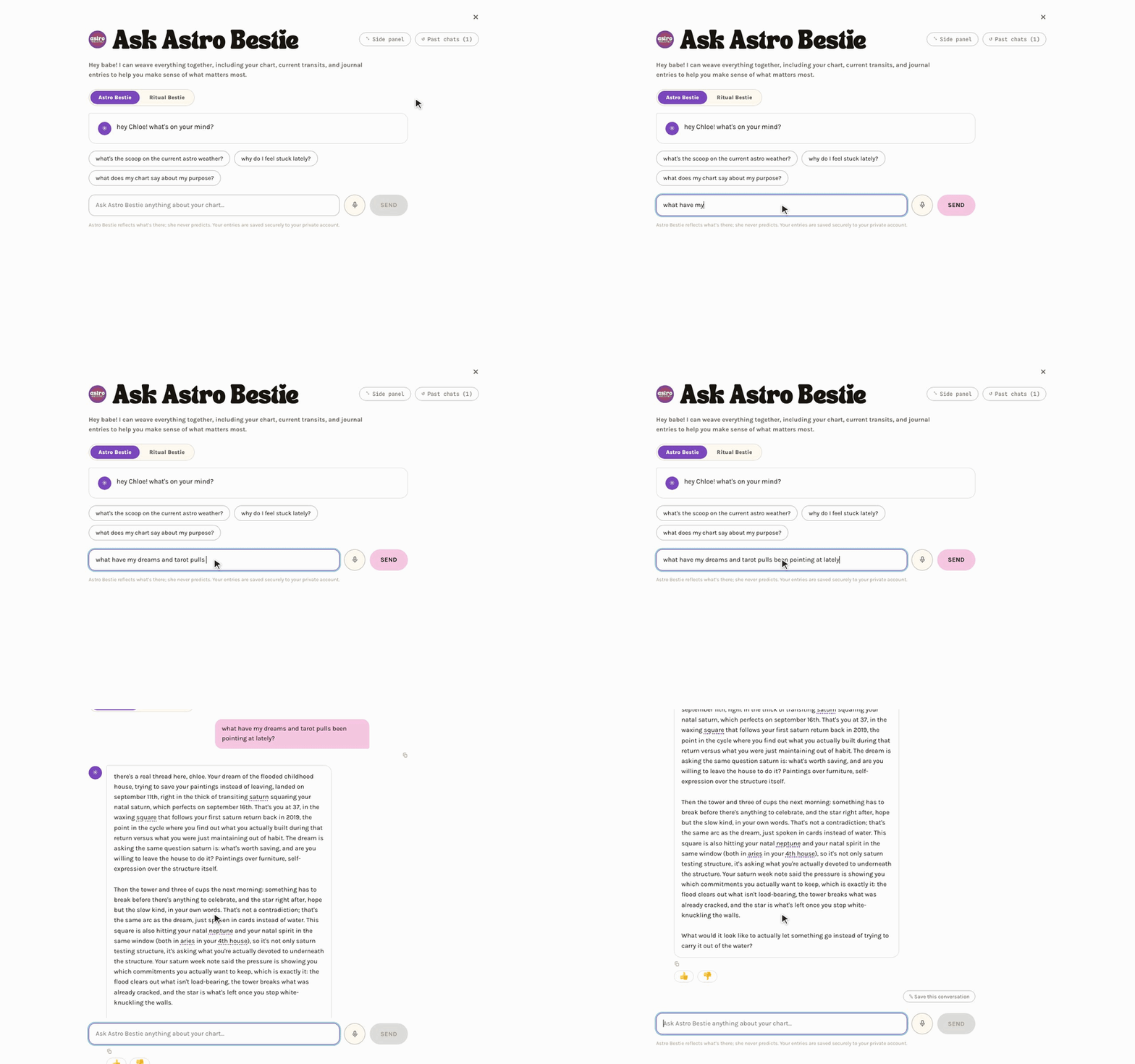

Where you can reach her
- The Ask Astro Bestie tab — the general conversation.
- From the Today page — arrives already anchored to today.
- From any transit — anchored to that transit.
- From inside a project — at the top of every project page, with that project's goal, steps, notes, and window of transits loaded.
What she can do
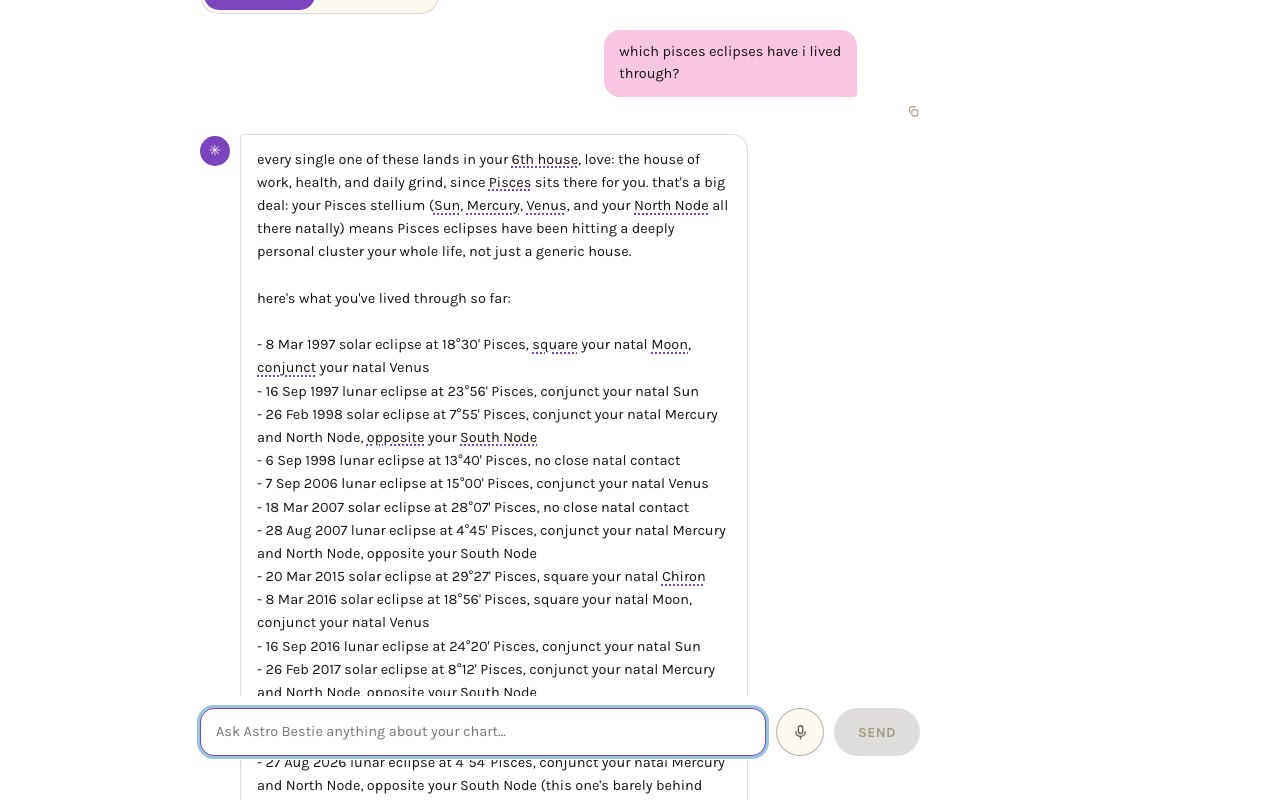
- Look up exact transit dates, planetary positions, dignities, retrogrades, lunations and eclipses, and sky-to-sky aspects, from the day you were born to decades ahead. She computes these rather than recalling them, so the dates are real. She can do this wherever you talk to her, including from a transit, from Today, and inside a project.
- Connect what's happening now to what you've written before.
- Start a project, save a reflection, file writing onto a transit's page, or add dated steps to a project's plan. She offers each as a button you confirm.
- Suggest which transits and placements a journal entry belongs to.
Ask about any date
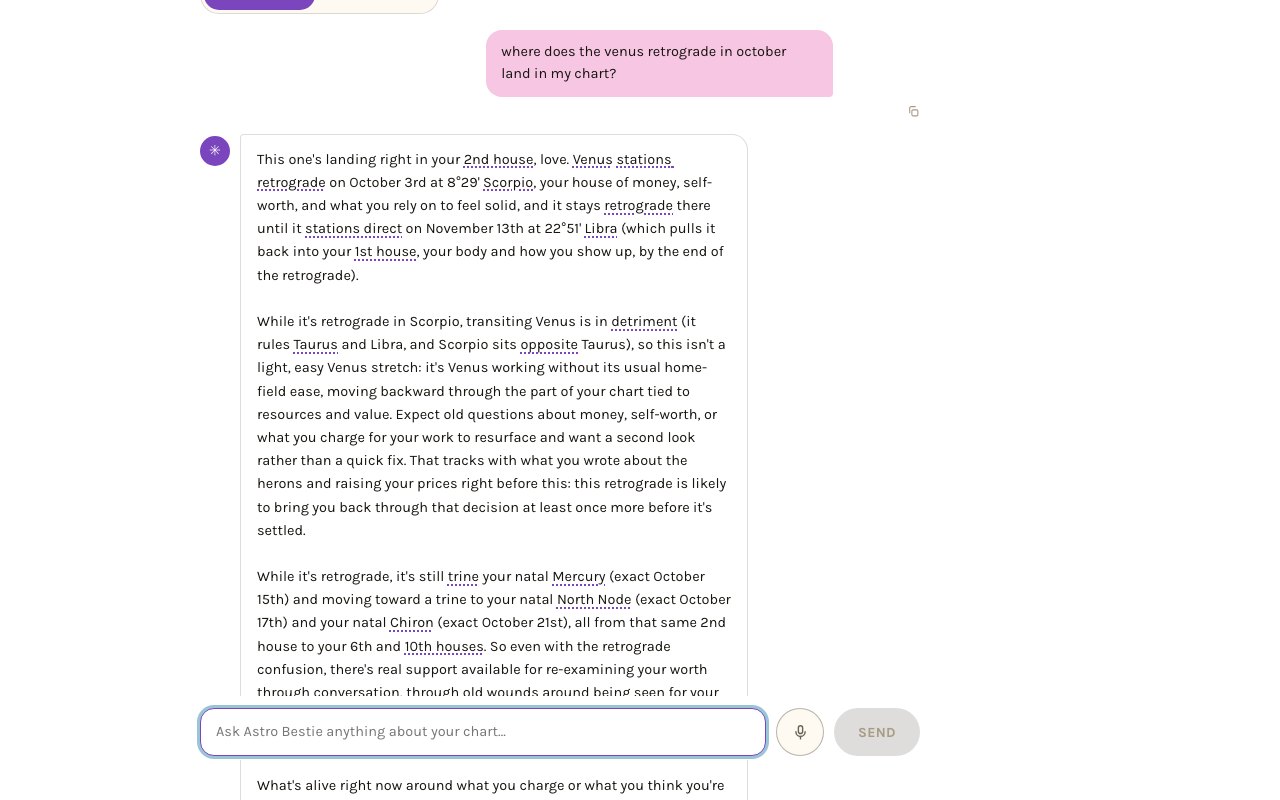
Ask when something last happened or when it comes next, and she looks it up: the last time Saturn squared your Sun, every Pisces eclipse you've lived through, where a coming retrograde lands in your chart.
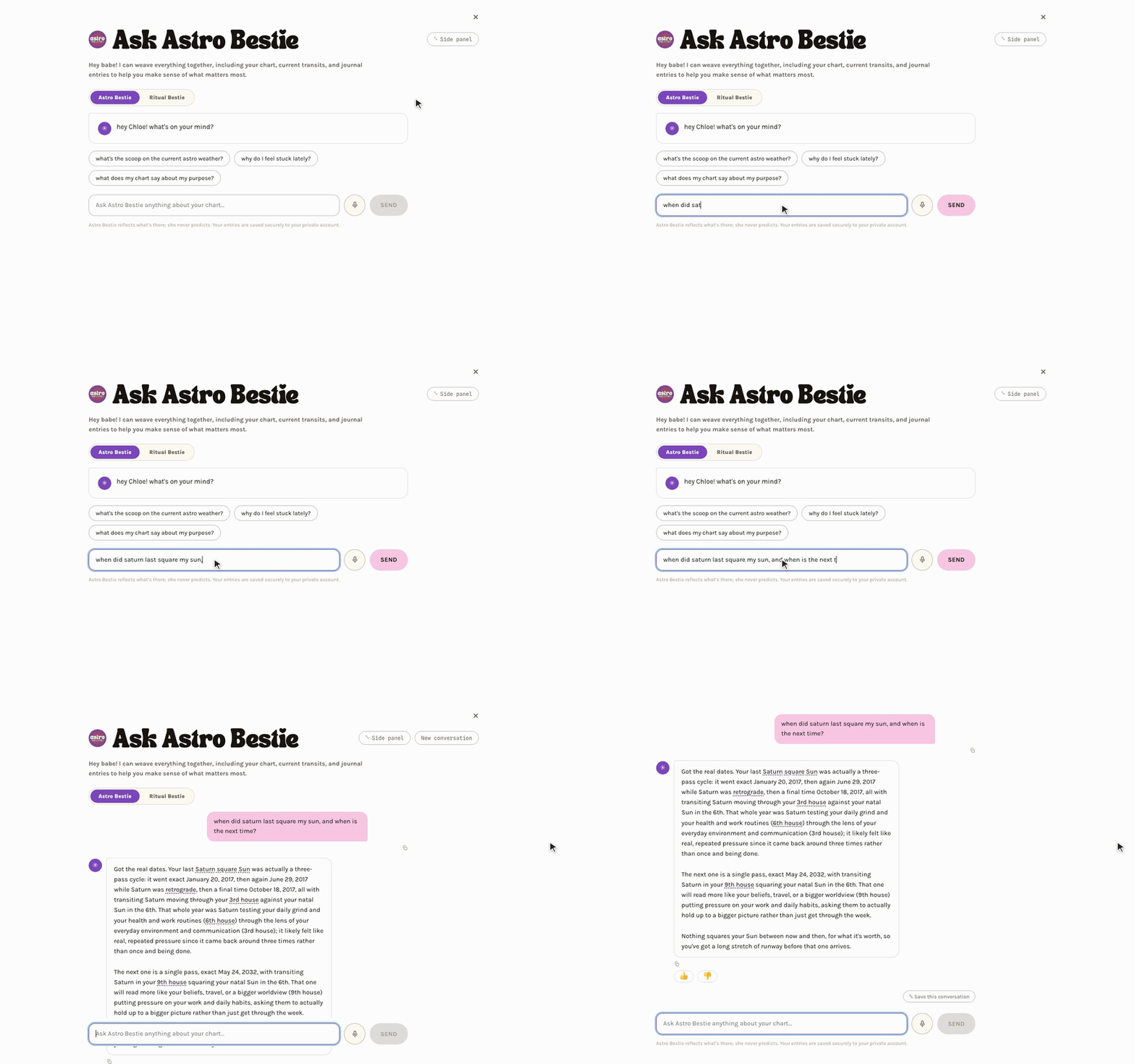
She keeps working from what she's already looked up, so a follow-up about a date she just gave you gets a real answer. Questions that need several lookups get a full answer too.
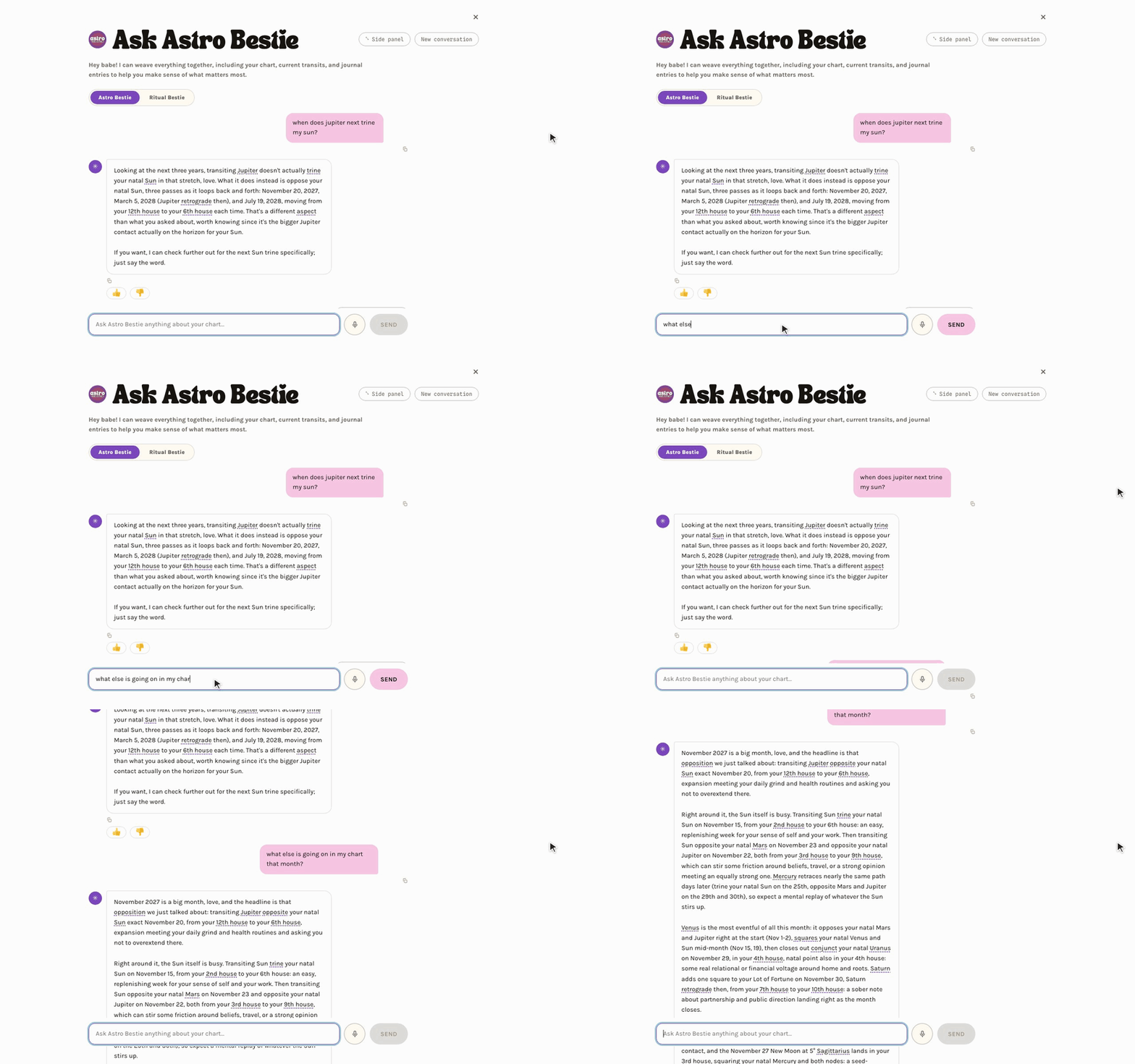
Your retrograde story
Astro Bestie can pull your past Mercury, Venus and Mars retrogrades and the ones coming up in one step, with every date, sign and house checked. It is a lot to cover, so ask in two messages:
First: Tell me the story of my past retrogrades. Pull my last two Venus retrogrades, my last two Mars retrogrades, and every Mercury retrograde from the past two years, and read the Mercury ones as one storyline per year. For each, give me the dates, the signs and houses it moved through in my chart, and what it was asking of me. Keep it to a short paragraph per chapter.
Then: Now tell me the story of the retrograde season coming up: the dates, where each retrograde lands in my chart, where they overlap, and how they pick up threads from the past ones. End with five reflection questions to help me set an intention for how I want to move through it.
Your chart, exactly
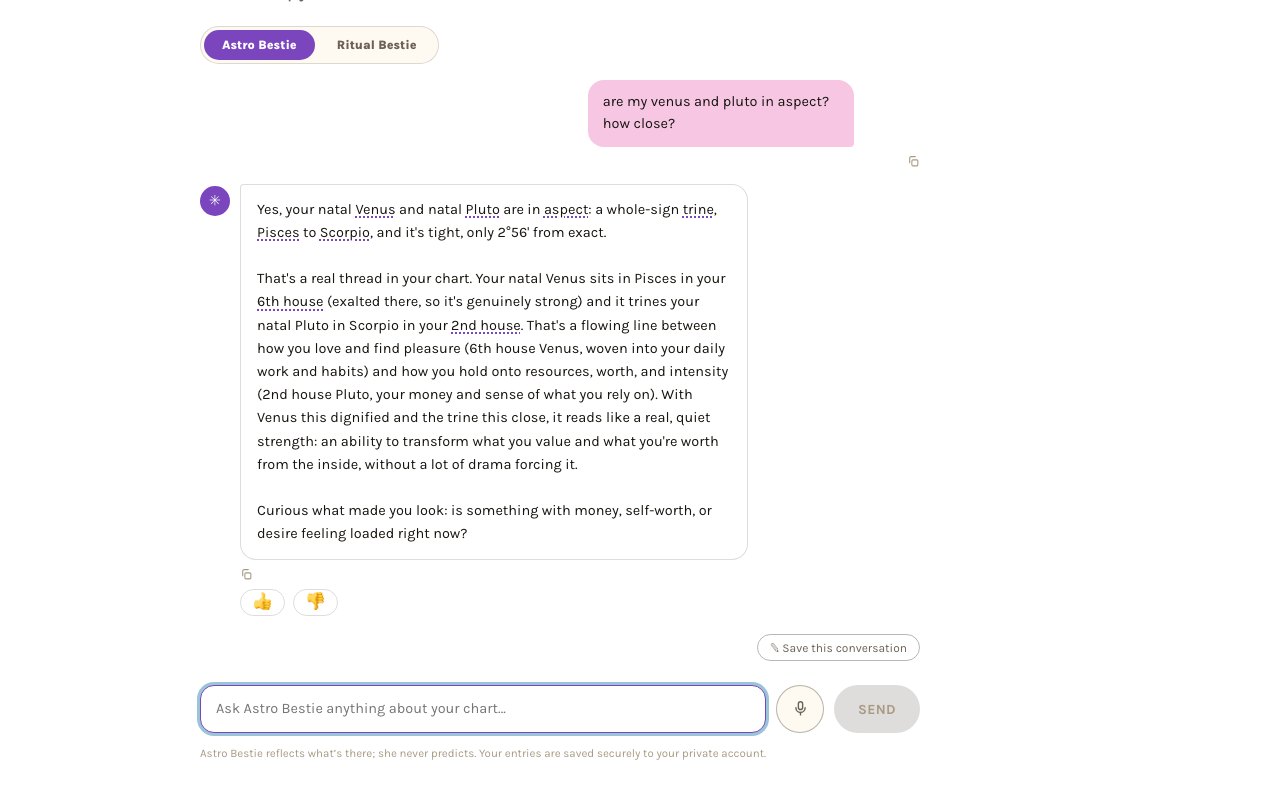
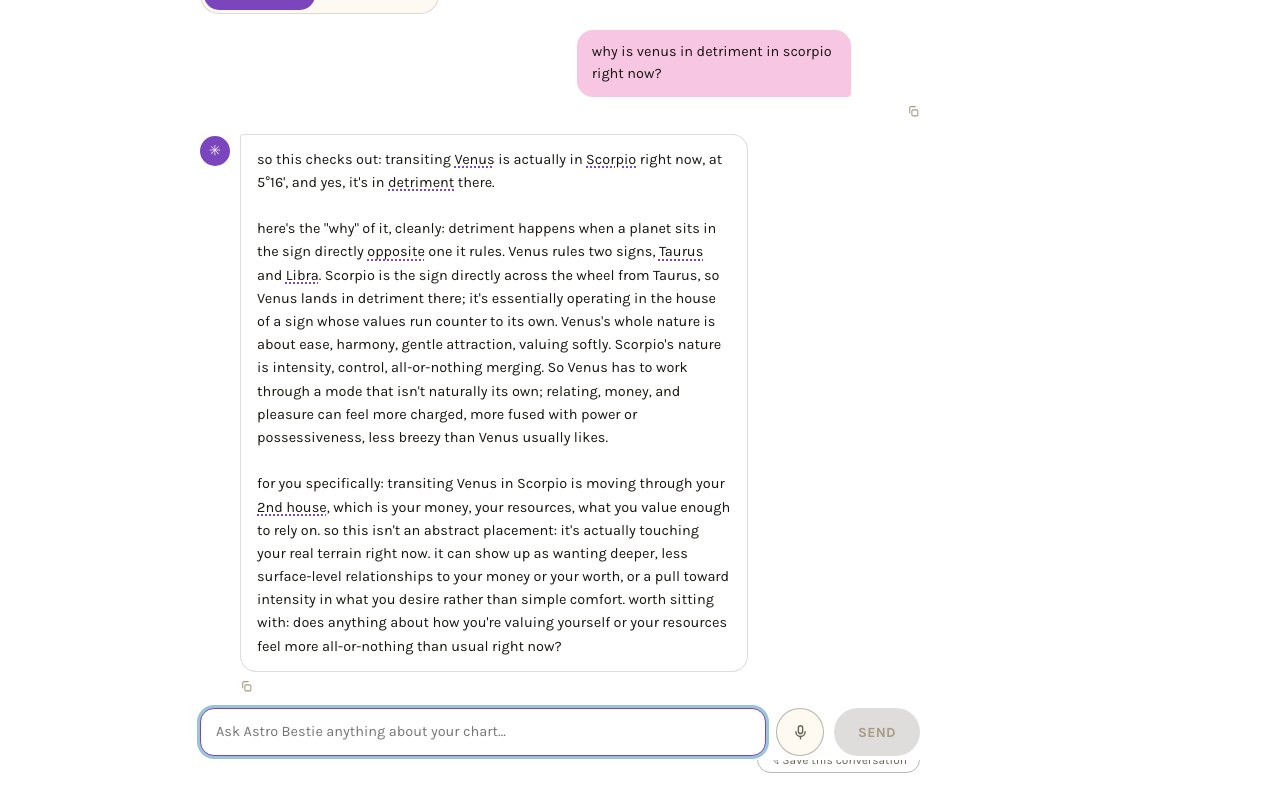
She knows the degree of every placement in your birth chart and every aspect between them, with how close each one is. She reads a retrograde through the house the moving planet is passing through, and gives the real reason for a dignity: a planet is in detriment only opposite a sign it rules, and in fall only opposite its exaltation.
Tarot
She reads your pulls and spreads, suggests a spread when you want one, and links cards to astrology the traditional way, including the card that belongs to each placement in your chart.
Two things worth knowing
- Dictation. Tap the microphone to speak instead of typing.
- Save the conversation. Any chat can be saved into your journal, onto a transit's page, or into a project — and you can trim it first so only the part that mattered is kept.
Give her replies a 👍 or 👎. A thumbs-down lets you add a note about what went wrong, and those go straight to Dana.
Hot Tips
Getting More Out of It
The things that make the biggest difference, and that most people don't find on their own.
Ask Astro Bestie to do it for you
You don't have to go and fill in a form. Tell her in the chat — "start a project for getting my sleep back on track", or "save that to my journal" — and she'll offer it as a button you tap to confirm. She can start a project, save a reflection, or file writing onto a specific transit's page.
Let her find the transit for you
If you don't know which transit an entry belongs to, you don't have to work it out. Write the entry, tap Suggest tags from what I wrote, and add the ones that fit. The more of your writing is attached, the more your transit pages remember.
Plan the retrograde before it starts
Make a Co-Create project for the next Mercury, Venus, or Mars retrograde and connect it to that retrograde. You'll see every transit from the start of the shadow to the end, and Astro Bestie can turn the ones that fit your goal into dated steps.
Put photos in your journal
Journal entries take photos, not just words. The altar you set up, the sky that night, the page from your notebook, the thing you made. Tap + Photo in the entry composer. They're private to your account and shown through short-lived links, never public URLs.
She knows tarot too
Every placement in your chart sits in a decan, and every decan carries a Golden Dawn tarot card. Open any placement in your birth chart and you'll see its card. Astro Bestie reads that lore as part of the picture, so if tarot is your language, ask her about it.
Attach what you write to the thing it's about
The single highest-value habit in the app. Attach an entry to a transit and it lives on that transit's page forever. When the same transit comes back — often years later — what you wrote last time is waiting. This is the part that compounds.
Talk instead of typing
Tap the microphone in any chat and speak. Useful when you're processing out loud and don't want to stop to type.
Keep the good conversations
When a chat gets somewhere real, save it. You can drop it into your journal, onto the transit you were discussing, or into a project — and trim it first so only the part that mattered is kept.
Set intentions before the transit arrives
Anything you set for a transit ahead of time surfaces in Today on the day it perfects. Write it while you can still think clearly about it, and let it find you later.
Learn
The Glossary and Learn
You don't need any astrology background to use Astro Bestie.
- Underlined words throughout the app have a plain-language definition. Hover or tap.
- Learn collects the whole vocabulary the app uses, explained in everyday words, grouped by topic. Skim it once and the rest of the app starts making sense.
To open Learn, tap the ? button at the top right of any page, then choose Learn library. You can also get there from any glossary definition by tapping "Read more in Learn".

House meanings are written as life areas rather than numbers wherever possible — "home, family, and roots" rather than "the 4th." The numbers are there when you want them.
Upgrades
What's Included and What Isn't
Your membership includes Today, Transits, the Birth chart, the Journal, Co-Create, Ask Astro Bestie, the Calendar, and Learn — plus the Lots of Fortune and Spirit.
Path to Purpose Upgrade
One upgrade, two tools:
- The 7 Hermetic Lots — Fortune, Spirit, Eros, Necessity, Courage, Victory, and Nemesis, each placed in your chart with a full reading of what it governs and how its ruler is doing.
- Zodiacal Releasing — a Hellenistic timing technique that reads your life as chapters and peak periods, presented as your Soul Story, a side-by-side comparison of Fortune and Spirit, and a plain explainer of how it works. It lives on its own tab on the Birth chart page.
Both unlock together. If you don't have it, you'll see a preview where those sections live.
The Ritual Cookbook Upgrade
A separate add-on: fifty-three rituals organised by what you need and how long you have, a builder for combining them into one timed practice, and Ritual Bestie, a chat that knows your chart and every ingredient in the book. Rituals you schedule land on your Today page. See for the full walkthrough.
Troubleshooting
Common Questions
My birth time is wrong, or I found the real one
Birth chart → Edit birth details. Everything recalculates immediately, including your houses and rising sign.
Astro Bestie says she couldn't answer
Usually a temporary connection problem. Hit Try again. If it keeps happening, check whether you've used this month's conversation allowance — it resets at the start of each month, and everything you've saved stays put.
Nothing is showing in Today
Some days genuinely have nothing closely aspecting your chart. That's a real answer and a fine one. Check the filter chips too, in case something is switched off.
I can only attach my entry to today's transits
The transit list follows the entry's date. Change the date on the entry to the day that transit was exact and the list reloads for that day. Or open the transit itself and use Write about this, which works whatever today's date is — and its pass history lets you pin the entry to one particular past or future pass. See for all three routes.
How do I cancel my membership?
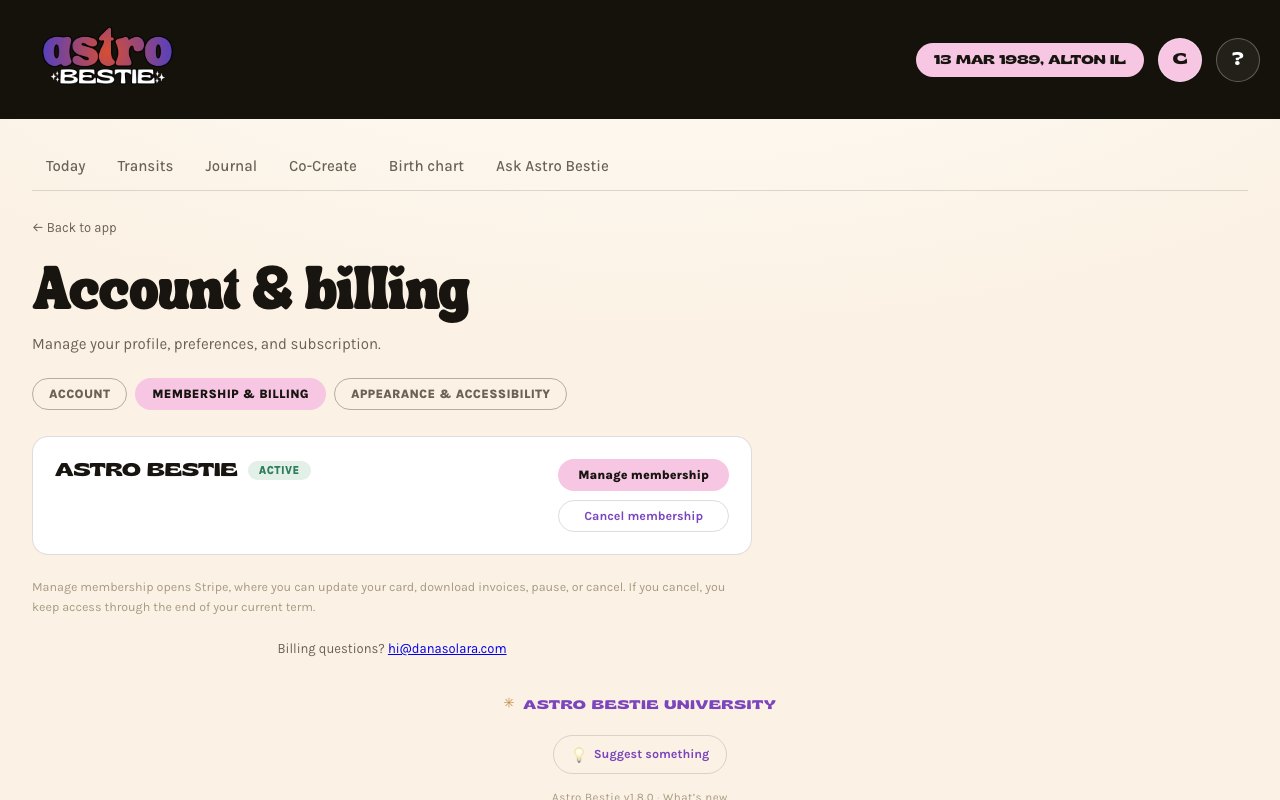
Tap the circle with your initial at the top right, then Membership & billing, or the Membership row on the Account tab. Cancel membership opens the cancel screen directly. You keep access through the end of the time you've paid for. If your membership can't be found there, write to hi@danasolara.com.
Where is dark mode? Where are the settings?
Tap the circle with your initial at the top right of any page, then the Appearance tab. Dark mode, larger text, reduce motion, and the glossary-underline switch are all there. They are set per device.
Where did my entry go?
Everything is in Journal, newest first. If you attached it to a transit or placement, it's also on that page. Use the type filters if the list is long.
Does anyone else see what I write?
No. Entries and photos are private to your account. Photos are stored privately and shown through short-lived links rather than public URLs.
Can I use it on my phone?
Yes. The whole app works in a phone browser, and you can add it to your home screen so it opens like an app — see .